How to Pair PS5 Controller to PC
Author : Aria
Apr 13,2025
The Sony DualSense stands out as the best PS5 controller, offering innovative features, a comfortable grip, and ergonomic design that enhance your gaming experience on the PlayStation 5. While connecting the DualShock 4 to best gaming PCs was a challenge in the past, the DualSense boasts significantly improved PC support, making it a top contender among the best PC controllers. Below, you'll find how straightforward it is to pair your DualSense with your PC.

Items Needed to Pair PS5 Controller with PC:
- Data-ready USB-C cable
- Bluetooth adapter for PC
Pairing your DualSense controller with a PC might hit a few snags, primarily due to the need for the right connectivity options. The DualSense doesn't include a USB cable when purchased separately, and not all PCs come equipped with Bluetooth. To successfully connect your DualSense, you'll need a USB-C cable that supports data transfer (beware of cheaper cables that only provide power). You can use a USB-C-to-C cable if your PC has a USB-C port, or opt for a USB-C-to-A cable for traditional USB ports.
If your PC lacks Bluetooth, adding it is a straightforward process. Numerous Bluetooth adapters are available, ranging from those that slot into a PCIe slot to simpler ones that just plug into a USB port.

Our Top Pick:
Creative BT-W5 Bluetooth Transmitter
How to Pair the PS5 Controller to PC over USB:

- Plug your selected USB cable into an open port on your PC.
- Connect the other end of the cable to the USB-C port on your DualSense controller.
- Wait for your Windows PC to recognize the DualSense controller as a gamepad.

How to Pair the PS5 DualSense Controller to PC over Bluetooth:
- Access your PC’s Bluetooth settings by pressing the Windows key, typing “Bluetooth”, and selecting Bluetooth & other devices from the menu.
- Click Add Bluetooth or other device.
- Choose Bluetooth in the pop-up window.
- On your DualSense controller (ensure it's disconnected and powered off), press and hold the PS Button and the Create button (located next to the D-Pad) simultaneously until the light bar under the touchpad starts blinking.
- On your PC, select your DualSense controller from the list of available Bluetooth devices.
Latest Articles
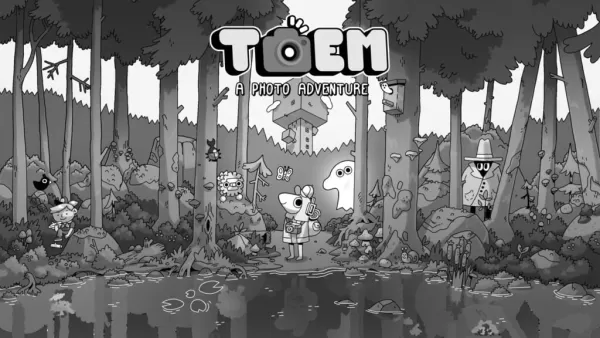
Hand-Drawn Photography Adventure Game TOEM Opens Pre-Registration on Mobile
BAFTA-winning title TOEM: A Photo Adventure arrives on mobile devices worldwide.
Developed by Swedish indie studio Something We Made, pre-registration for TOEM is now available on Android. The official release date is set for October 22nd.
Fun fact:
Mutants: Genesis Hits iOS, Android, Steam After Early Access
Clash Royale players finally get to witness the highly anticipated evolution of the Inferno Dragon. After nearly a decade without an upgrade, this fiery Legendary card receives a powerful transformation. The developers at Supercell teamed up with Fin
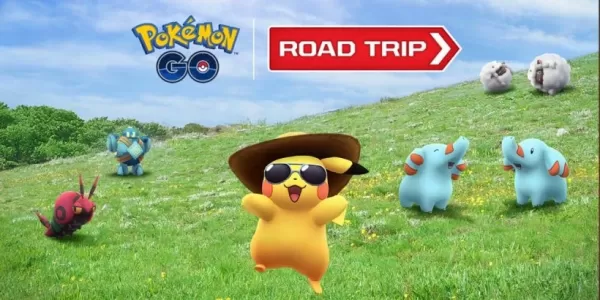
Pokemon GO Road Trip 2025 Details, Summer Pikachu Available
Experience Pokémon GO Road Trip Truck stops in the gameFind Wooloo, Phanpy, and Alolan Geodude in the wildSummer-style Pikachu makes a special appearanceIf today's new details don't get you excited for the Pokemon GO Road Trip 2025, nothing will. Thi
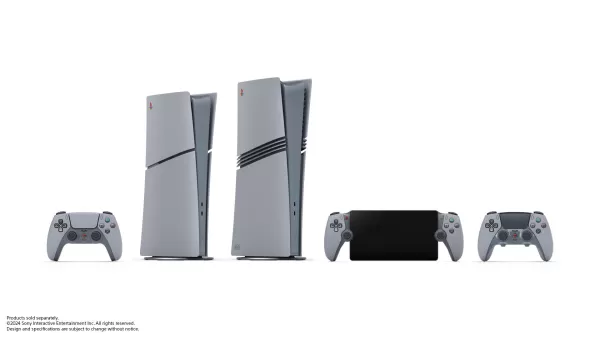
PlayStation Stars Shuts Down After 3 Years
Sony has announced the discontinuation of its PlayStation Stars loyalty program less than three years after its introduction.The rewards initiative stopped accepting new members today, with exiting participants unable to rejoin. Canceling membership
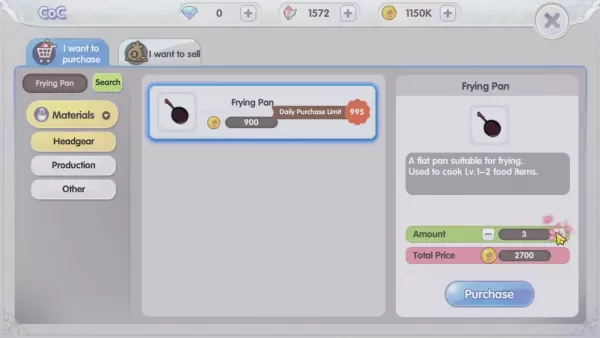
Mastering Cooking in Ragnarok X: Next Generation
Cooking in Ragnarok X: Next Generation is a dynamic system that enhances combat, resource gathering, and character progression. Preparing dishes grants temporary boosts, improving dungeon survivabilit
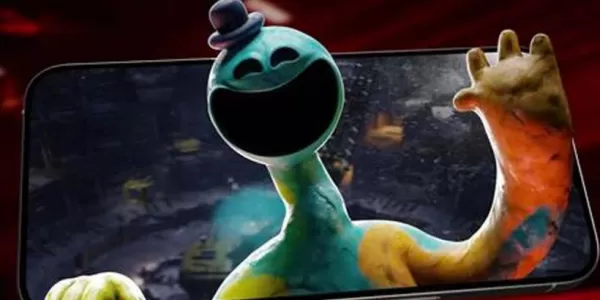
Poppy Playtime Chapter 4 Launches with Introductory Sale
Uncover new characters and a deeper backstoryNavigate the depths of the Playtime Co. factoryLimited-time introductory discount availableMob Entertainment has officially released Poppy Playtime Chapter 4, allowing you to dive into the next chilling ch
Latest Games

Aircraft Strike: Jet Fighter
Action丨78.4 MB
Hero Dino Robot Warrior Battle
Action丨116.9 MB

Caza zorzal
Action丨20.1 MB
DEAD KILL: Zombie Game 3D
Action丨94.3 MB
Age of Tribes
Action丨97.1 MB


Scary Mansion: Horror Game 3D
Adventure丨170.4 MB

Playtime Adventure Multiplayer
Adventure丨214.1 MB








Top News
MORE +

01
01-07
BREAKING: Flight Simulator 2024 Login Woes Ground Players
Flight Simulator 2024 Launch Plagued by Technical Difficulties
The highly anticipated launch of Flight Simulator 2024 has been significantly hampered by widespread technical problems, leaving many players grounded before they could even take to the virtual skies. This article details the reported d
02
01-06
CDPR acknowledged weak gameplay in The Witcher 3
The Witcher 3, while critically acclaimed, wasn't without its flaws. Many fans felt the combat system fell short.
In a recent interview, Witcher 4's game director, Sebastian Kalemba, acknowledged weaknesses in the previous game's gameplay, specifically highlighting the need for significant improvem
03
11-17
Hogwarts Legacy 2 is "One of the Biggest Priorities" for WB Games
Following the successful launch of Quidditch Champions this week, Warner Bros. Discovery has confirmed its plans for a sequel to last year's Harry Potter-based action RPG hit Hogwarts Legacy—2023's best-selling game.Hogwarts Legacy Sequel Plans Confirmed by Warner Bros. DiscoveryExpected in
04
11-16
Airplane Chefs Brings The Ultimate Snack, Pringles, On Board!
Buckle up for some snacks as Nordcurrent has just dropped an exciting event for their cooking game. It’s the most unexpected collab of Airplane Chefs and Pringles. If you’ve been enjoying your virtual life as a flight attendant, things are about to get a lot tastier.The game developer behind p
05
11-16
Play Together to collaborate with Sanrio and introduce new My Melody and Kuromi content
Play Together is bringing back its Sanrio collab with the appearance of My Melody and KuromiYou can collect coins by completing their themed missions that can then be used to draw exclusive itemsAs a bonus there's also new summer-themed content and events, including a major bug huntPlay Together, th
Topics
More +