"Call of Duty: Black Ops 6: Grainy and Blurry Visuals Explained"
Author : Madison
May 03,2025
When diving into a premium AAA title like *Call of Duty*, players expect top-notch performance. However, if you're finding *Call of Duty: Black Ops 6* looking grainy and blurry, impacting your immersion and ability to spot targets, here's how you can enhance your visual experience and sharpen your gameplay.
Table of contents
Why Does Black Ops 6 Look Grainy & Blurry? AnsweredHow to Turn Off Blur in Call of Duty: Black Ops 6How to Reduce Grain and Improve Clarity in Black Ops 6How to Improve Black Ops 6 Image Details and Textures
Why Does Black Ops 6 Look Grainy & Blurry? Answered
If Black Ops 6 appears grainy and blurry on your setup, even after adjusting your hardware settings to output at the highest resolution your monitor can handle, the issue likely lies within the game's settings. Even if you've tweaked these settings before, some updates might reset them to default. The key settings affecting image quality are found in the graphics settings under the Display, Quality, and View tabs. Within the Quality tab, you'll find the crucial options to fix how Black Ops 6 looks.
How to Turn Off Blur in Call of Duty: Black Ops 6
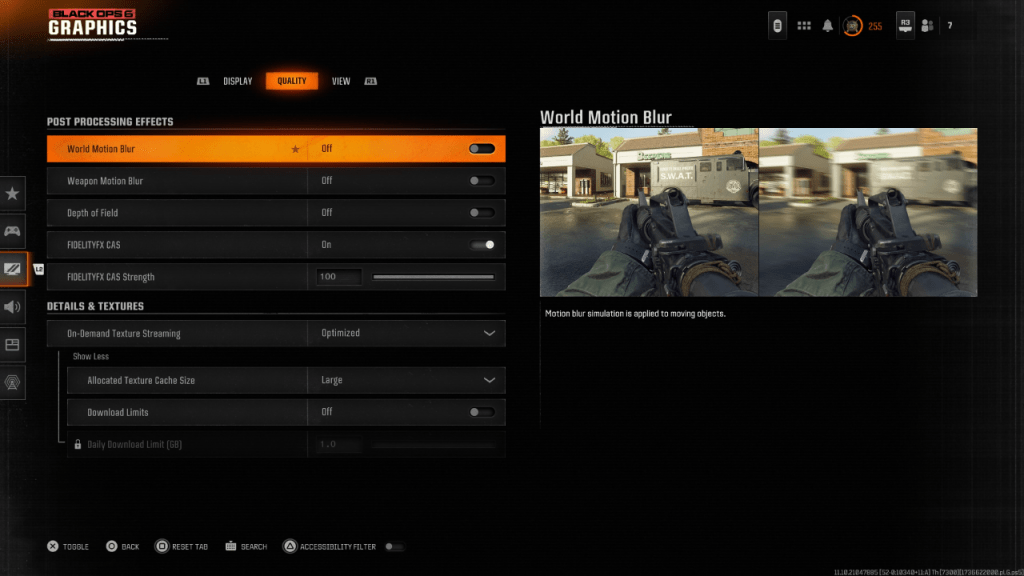 For a cinematic feel, games often include Motion Blur and Depth of Field, simulating real-world camera effects. While this can enhance immersion in narrative-driven games, these settings can blur the image in fast-paced competitive titles like Call of Duty: Black Ops 6, making it tougher to spot targets.
Here’s how to disable Motion Blur and Depth of Field:
Navigate to the graphics settings, select the Quality tab, and scroll down to Post Processing Effects. Turn World Motion Blur to Off. Turn Weapon Motion Blur to Off. Turn Depth of Field to Off. How to Reduce Grain and Improve Clarity in Black Ops 6
Even after adjusting the blur settings, you might still notice some image quality issues. This could be due to improper gamma and brightness settings. Go to the Display tab in the Black Ops 6 Graphics settings, click on Gamma/Brightness, and adjust the slider until the Call of Duty logo in the middle panel is barely visible. A midpoint of 50 often works well, but you might need to fine-tune based on your display's characteristics.
Next, in the Quality tab of Black Ops 6 graphics settings, ensure FIDELITYFX CAS is set to On. This activates AMD FidelityFX Contrast Adaptive Sharpening, which boosts scene rendering sharpness. The default FIDELITYFX CAS Strength is 50/100, but cranking it up to 100 might give you an even sharper image if needed. If you've made all these adjustments and still face image quality issues, On-Demand Texture Streaming might be the culprit.
How to Improve Black Ops 6 Image Details and Textures
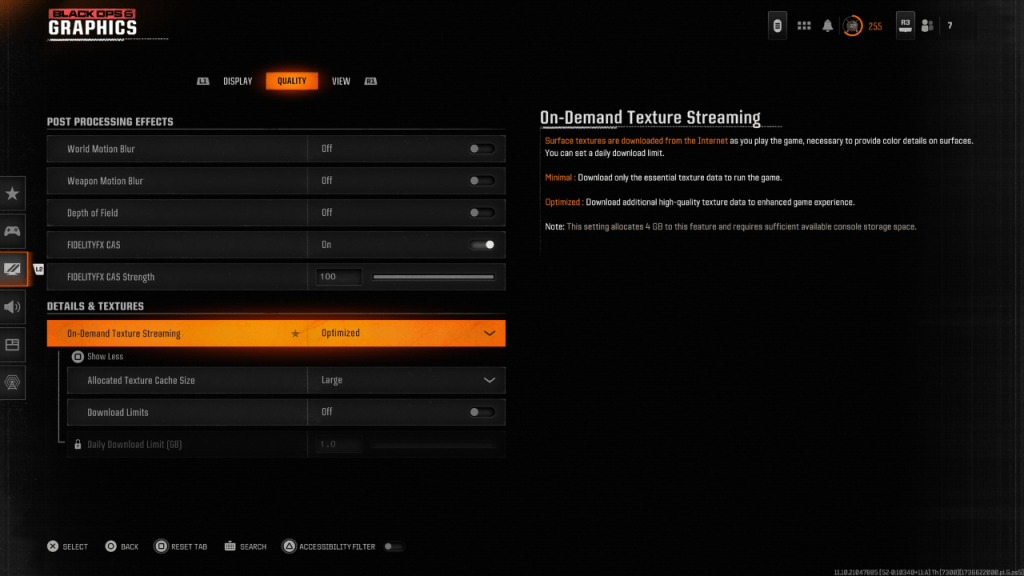 To manage the hefty file sizes of modern Call of Duty games, Black Ops 6 uses On-Demand Texture Streaming, downloading textures as you play rather than storing them locally. While this saves space, it can compromise image quality.
To maximize image quality, navigate to the Details & Textures settings under the Quality tab in Black Ops 6 graphics settings. Set On-Demand Texture Streaming to Optimized to download high-quality texture data. Click “Show More” to access additional options, and set the Allocated Texture Cache Size to Large. This will use more storage space but allow more textures to be downloaded simultaneously. If your internet service provider doesn’t impose data caps, switch Download Limits to Off to ensure Black Ops 6 can download as many high-resolution textures as needed for optimal graphical performance.
By following these steps, you can significantly improve the visual quality of Call of Duty: Black Ops 6, ensuring a clearer and more immersive gaming experience.
Latest Articles
Pokemon GO Road Trip 2025 Details, Summer Pikachu Available
Experience Pokémon GO Road Trip Truck stops in the gameFind Wooloo, Phanpy, and Alolan Geodude in the wildSummer-style Pikachu makes a special appearanceIf today's new details don't get you excited for the Pokemon GO Road Trip 2025, nothing will. Thi
PlayStation Stars Shuts Down After 3 Years
Sony has announced the discontinuation of its PlayStation Stars loyalty program less than three years after its introduction.The rewards initiative stopped accepting new members today, with exiting participants unable to rejoin. Canceling membership
Mastering Cooking in Ragnarok X: Next Generation
Cooking in Ragnarok X: Next Generation is a dynamic system that enhances combat, resource gathering, and character progression. Preparing dishes grants temporary boosts, improving dungeon survivabilit
Poppy Playtime Chapter 4 Launches with Introductory Sale
Uncover new characters and a deeper backstoryNavigate the depths of the Playtime Co. factoryLimited-time introductory discount availableMob Entertainment has officially released Poppy Playtime Chapter 4, allowing you to dive into the next chilling ch

Japan Expansion for Ticket to Ride: Build the Bullet Train Network!
Ticket to Ride now lets you embark on a virtual train journey across Japan with its latest expansion. Marmalade Game Studio and Asmodee Entertainment have launched the Japan Expansion for their digital adaptation of the classic board game.
Help Build
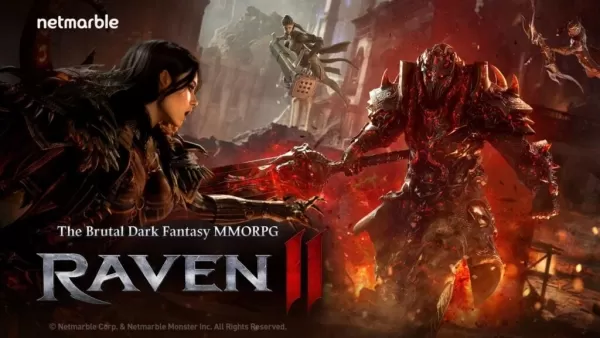
Raven2, Dark Fantasy MMORPG, Launches on Android
Netmarble has launched Raven2, its gritty dark fantasy MMORPG, on Android. The global release covers over 150 countries, including North America, Southeast Asia & Oceania, and Europe. The game also offers support for 16 languages.A wild adventure awa
Latest Games
Hill Climb Racing
Racing丨116.2 MB

Zombie Derby 2
Racing丨66.3 MB

Sunset Bike Racer - Motocross
Racing丨47.9 MB

Racing Rivals
Racing丨217.5 MB


My Candy Love NewGen
Role Playing丨113.0 MB

Dungeon RPG
Role Playing丨25.9 MB
Survival Farm: Adventure RPG
Role Playing丨400.9 MB








Top News
MORE +

01
01-07
BREAKING: Flight Simulator 2024 Login Woes Ground Players
Flight Simulator 2024 Launch Plagued by Technical Difficulties
The highly anticipated launch of Flight Simulator 2024 has been significantly hampered by widespread technical problems, leaving many players grounded before they could even take to the virtual skies. This article details the reported d
02
01-06
CDPR acknowledged weak gameplay in The Witcher 3
The Witcher 3, while critically acclaimed, wasn't without its flaws. Many fans felt the combat system fell short.
In a recent interview, Witcher 4's game director, Sebastian Kalemba, acknowledged weaknesses in the previous game's gameplay, specifically highlighting the need for significant improvem
03
11-17
Hogwarts Legacy 2 is "One of the Biggest Priorities" for WB Games
Following the successful launch of Quidditch Champions this week, Warner Bros. Discovery has confirmed its plans for a sequel to last year's Harry Potter-based action RPG hit Hogwarts Legacy—2023's best-selling game.Hogwarts Legacy Sequel Plans Confirmed by Warner Bros. DiscoveryExpected in
04
11-16
Airplane Chefs Brings The Ultimate Snack, Pringles, On Board!
Buckle up for some snacks as Nordcurrent has just dropped an exciting event for their cooking game. It’s the most unexpected collab of Airplane Chefs and Pringles. If you’ve been enjoying your virtual life as a flight attendant, things are about to get a lot tastier.The game developer behind p
05
11-16
Play Together to collaborate with Sanrio and introduce new My Melody and Kuromi content
Play Together is bringing back its Sanrio collab with the appearance of My Melody and KuromiYou can collect coins by completing their themed missions that can then be used to draw exclusive itemsAs a bonus there's also new summer-themed content and events, including a major bug huntPlay Together, th
Topics
More +