Optimal Graphics Settings for Monster Hunter Wilds Revealed
Author : Grace
May 04,2025
*Monster Hunter Wilds* dazzles with its stunning visuals, but achieving peak performance without compromising on graphics can be a challenge. Here, we delve into the optimal graphics settings for *Monster Hunter Wilds* to ensure you get the most out of your gaming experience.
Monster Hunter Wilds System Requirements
To play at higher resolutions or max settings, you'll need a robust setup with a high-end GPU boasting ample VRAM and a powerful CPU. Make sure to check where you can order *Monster Hunter Wilds* for your preferred platform.
| **Minimum Requirements** | **Recommended Requirements** |
| **OS:** Windows 10 or newer **CPU:** Intel Core i5-10600 / AMD Ryzen 5 3600 **Memory:** 16GB RAM **GPU:** NVIDIA GTX 1660 Super / AMD Radeon RX 5600 XT (6GB VRAM) **DirectX:** Version 12 **Storage:** 140GB SSD required **Performance Expectation:** 30 FPS @ 1080p (upscaled from 720p) | **OS:** Windows 10 or newer **CPU:** Intel Core i5-11600K / AMD Ryzen 5 3600X **Memory:** 16GB RAM **GPU:** NVIDIA RTX 2070 Super / AMD RX 6700XT (8-12GB VRAM) **DirectX:** Version 12 **Storage:** 140GB SSD required **Performance Expectation:** 60 FPS @ 1080p (Frame Generation enabled) |
Monster Hunter Wilds Best Graphics Settings
Whether you're equipped with a high-end RTX 4090 or a budget RX 5700XT, optimizing your graphics settings in *Monster Hunter Wilds* can help you achieve impressive performance without significantly impacting visual quality. The difference between Ultra and High settings in modern games is often minimal visually, but the performance gain can be substantial.
Display Settings
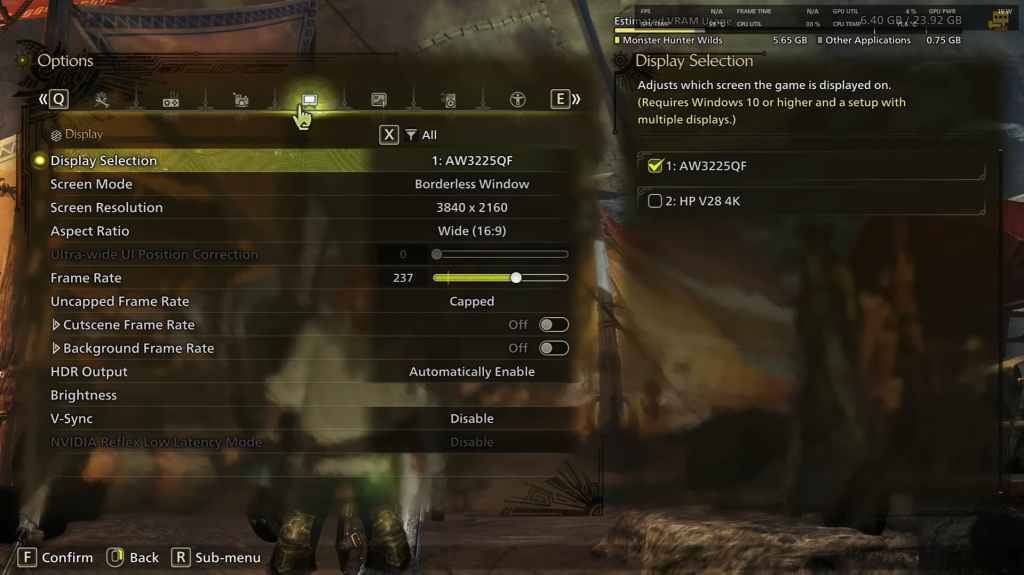
- **Screen Mode:** Personal Preference; Bordered Fullscreen is recommended if you frequently tab out.
- **Resolution:** Set to your monitor's native resolution.
- **Frame Rate:** Match your monitor's refresh rate (e.g., 144, 240).
- **V-Sync:** Disable to reduce input lag.
Graphics Settings
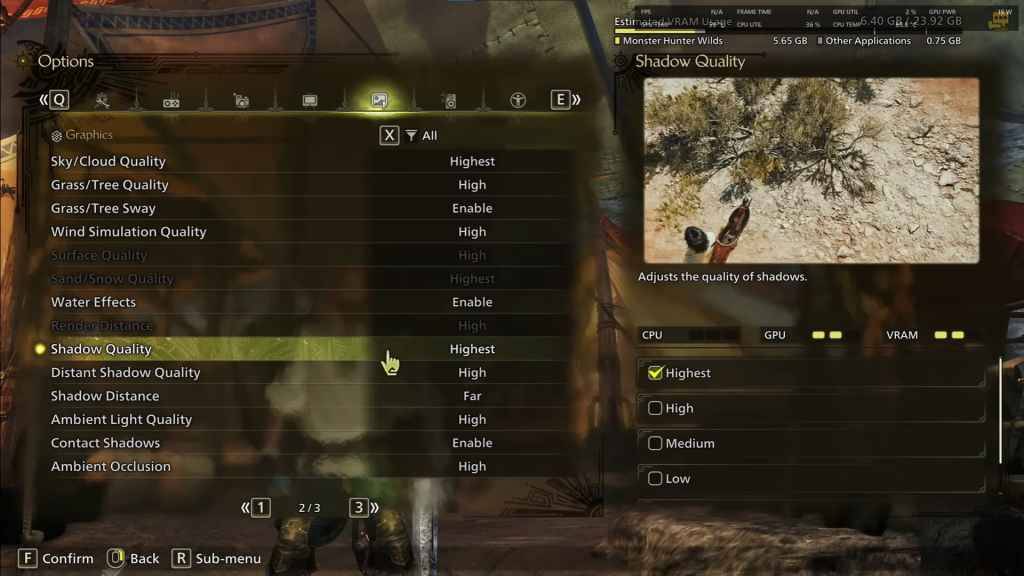
| Setting | Recommended | Description |
| **Sky/Cloud Quality** | Highest | Enhances atmospheric detail. |
| **Grass/Tree Quality** | High | Affects vegetation detail. |
| **Grass/Tree Sway** | Enabled | Adds realism with a minor performance impact. |
| **Wind Simulation Quality** | High | Improves environmental effects. |
| **Surface Quality** | High | Details on the ground and objects. |
| **Sand/Snow Quality** | Highest | For detailed terrain textures. |
| **Water Effects** | Enabled | Adds reflections and realism. |
| **Render Distance** | High | Determines how far objects are rendered. |
| **Shadow Quality** | Highest | Improves lighting but is demanding. |
| **Distant Shadow Quality** | High | Enhances shadow detail at a distance. |
| **Shadow Distance** | Far | Controls how far shadows extend. |
| **Ambient Light Quality** | High | Enhances shadow detail at a distance. |
| **Contact Shadows** | Enabled | Enhances small object shadowing. |
| **Ambient Occlusion** | High | Improves depth in shadows. |
These settings prioritize visual fidelity over raw FPS, as *Monster Hunter Wilds* is not a competitive game where every frame counts. However, feel free to adjust these settings based on your PC's performance. If you're experiencing low frame rates, consider reducing settings like Shadows and Ambient Occlusion, which are the most resource-intensive. Also, lowering distant shadows, shadow distance, Water Effects, and Sand/Snow Quality can help manage VRAM usage.
Best Settings for Different Builds
Not everyone has a high-end build capable of running games at 4K. Here are tailored settings for different build tiers to ensure smooth gameplay:
Mid-Range Build (GTX 1660 Super / RX 5600 XT)
- **Resolution:** 1080p
- **Upscaling:** AMD FSR 3.1 Balanced
- **Frame Gen:** Off
- **Textures:** Low
- **Render Distance:** Medium
- **Shadow Quality:** Medium
- **Distant Shadow Quality:** Low
- **Grass/Tree Quality:** Medium
- **Wind Simulation:** Low
- **Ambient Occlusion:** Medium
- **Motion Blur:** Off
- **V-Sync:** Off
- **Expected Performance:** ~40-50 FPS at 1080p
Recommended Build (RTX 2070 Super / RX 6700XT)
- **Resolution:** 1080p
- **Upscaling:** FSR 3.1 Balanced
- **Frame Gen:** Enabled
- **Textures:** Medium
- **Render Distance:** Medium
- **Shadow Quality:** High
- **Distant Shadow Quality:** Low
- **Grass/Tree Quality:** High
- **Wind Simulation:** High
- **Ambient Occlusion:** Medium
- **Motion Blur:** Off
- **V-Sync:** Off
- **Expected Performance:** ~60 FPS at 1080p
High-End Build (RTX 4080 / RX 7900 XTX)
- **Resolution:** 4K
- **Upscaling:** DLSS 3.7 Performance (NVIDIA) / FSR 3.1 (AMD)
- **Frame Gen:** Enabled
- **Textures:** High
- **Render Distance:** Highest
- **Shadow Quality:** High
- **Distant Shadow Quality:** High
- **Grass/Tree Quality:** High
- **Wind Simulation:** High
- **Ambient Occlusion:** High
- **Motion Blur:** Off
- **V-Sync:** Off
- **Expected Performance:** ~90-120 FPS at 4K (upscaled)
*Monster Hunter Wilds* offers a plethora of graphical options, each with varying impacts on gameplay. For those struggling with performance, consider reducing shadows, ambient occlusion, and render distance. Budget users can benefit from FSR 3 upscaling to boost FPS, while high-end builds can handle 4K settings with frame generation enabled.
For the best balance, use a mix of medium to high settings, enable upscaling, and adjust shadows and distance settings according to your hardware capabilities.
And there you have it—the best graphics settings for *Monster Hunter Wilds*.
*Monster Hunter Wilds is now available on PlayStation, Xbox, and PC.*
Latest Articles

Pokemon GO Road Trip 2025 Details, Summer Pikachu Available
Experience Pokémon GO Road Trip Truck stops in the gameFind Wooloo, Phanpy, and Alolan Geodude in the wildSummer-style Pikachu makes a special appearanceIf today's new details don't get you excited for the Pokemon GO Road Trip 2025, nothing will. Thi
PlayStation Stars Shuts Down After 3 Years
Sony has announced the discontinuation of its PlayStation Stars loyalty program less than three years after its introduction.The rewards initiative stopped accepting new members today, with exiting participants unable to rejoin. Canceling membership
Mastering Cooking in Ragnarok X: Next Generation
Cooking in Ragnarok X: Next Generation is a dynamic system that enhances combat, resource gathering, and character progression. Preparing dishes grants temporary boosts, improving dungeon survivabilit

Poppy Playtime Chapter 4 Launches with Introductory Sale
Uncover new characters and a deeper backstoryNavigate the depths of the Playtime Co. factoryLimited-time introductory discount availableMob Entertainment has officially released Poppy Playtime Chapter 4, allowing you to dive into the next chilling ch
Japan Expansion for Ticket to Ride: Build the Bullet Train Network!
Ticket to Ride now lets you embark on a virtual train journey across Japan with its latest expansion. Marmalade Game Studio and Asmodee Entertainment have launched the Japan Expansion for their digital adaptation of the classic board game.
Help Build
Raven2, Dark Fantasy MMORPG, Launches on Android
Netmarble has launched Raven2, its gritty dark fantasy MMORPG, on Android. The global release covers over 150 countries, including North America, Southeast Asia & Oceania, and Europe. The game also offers support for 16 languages.A wild adventure awa
Latest Games

熾熱戰姬
Role Playing丨649.9 MB


Virtual Vape'N Pod Skill
Simulation丨117.2 MB

Happy Mall Story: Sim Game
Simulation丨29.0 MB

Pink Taxi Driving Game 3D
Simulation丨42.9 MB
СтендСимулятор: Кейс Симулятор
Simulation丨126.1 MB

War Dragons
Strategy丨232.8 MB








Top News
MORE +

01
01-07
BREAKING: Flight Simulator 2024 Login Woes Ground Players
Flight Simulator 2024 Launch Plagued by Technical Difficulties
The highly anticipated launch of Flight Simulator 2024 has been significantly hampered by widespread technical problems, leaving many players grounded before they could even take to the virtual skies. This article details the reported d
02
01-06
CDPR acknowledged weak gameplay in The Witcher 3
The Witcher 3, while critically acclaimed, wasn't without its flaws. Many fans felt the combat system fell short.
In a recent interview, Witcher 4's game director, Sebastian Kalemba, acknowledged weaknesses in the previous game's gameplay, specifically highlighting the need for significant improvem
03
11-17
Hogwarts Legacy 2 is "One of the Biggest Priorities" for WB Games
Following the successful launch of Quidditch Champions this week, Warner Bros. Discovery has confirmed its plans for a sequel to last year's Harry Potter-based action RPG hit Hogwarts Legacy—2023's best-selling game.Hogwarts Legacy Sequel Plans Confirmed by Warner Bros. DiscoveryExpected in
04
11-16
Airplane Chefs Brings The Ultimate Snack, Pringles, On Board!
Buckle up for some snacks as Nordcurrent has just dropped an exciting event for their cooking game. It’s the most unexpected collab of Airplane Chefs and Pringles. If you’ve been enjoying your virtual life as a flight attendant, things are about to get a lot tastier.The game developer behind p
05
11-16
Play Together to collaborate with Sanrio and introduce new My Melody and Kuromi content
Play Together is bringing back its Sanrio collab with the appearance of My Melody and KuromiYou can collect coins by completing their themed missions that can then be used to draw exclusive itemsAs a bonus there's also new summer-themed content and events, including a major bug huntPlay Together, th
Topics
More +