Fortnite Chapter 6 Best PC Settings & How To Boost FPS
Author : Madison
Feb 28,2025
Optimize Your Fortnite PC Settings for Peak Performance
Fortnite's demanding nature can lead to frustrating low frame rates, hindering gameplay. However, optimizing your in-game settings can significantly improve performance. This guide details the best PC settings for a smoother, more responsive Fortnite experience.
Display Settings
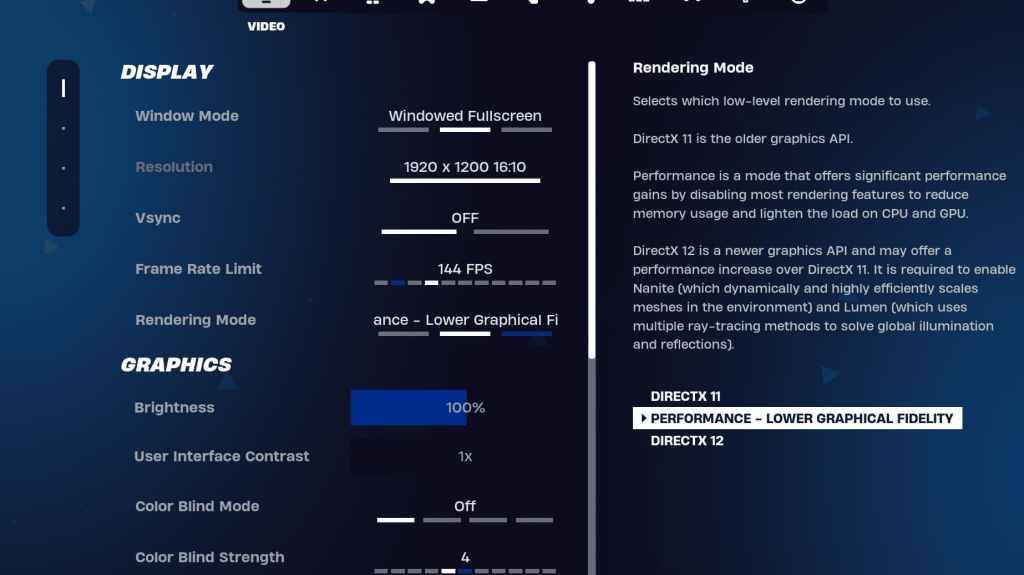
The Display and Graphics sections within Fortnite's video settings are crucial for performance tuning. Here's the recommended configuration for the Display section:
| Setting | Recommended |
|---|---|
| Window Mode | Fullscreen (best performance); Windowed Fullscreen (for frequent tabbing) |
| Resolution | Native monitor resolution (e.g., 1920x1080) |
| V-sync | Off (reduces input lag) |
| Framerate Limit | Monitor Refresh Rate (e.g., 144Hz, 240Hz) |
| Rendering Mode | Performance (highest FPS) |
Rendering Modes Explained:
Fortnite offers three rendering modes: Performance, DirectX 11, and DirectX 12. DirectX 11 is stable and reliable, while DirectX 12 offers potential performance gains on modern hardware but may be less stable. For maximum FPS and minimal lag, "Performance" mode is the preferred choice among professional players.
Graphics Settings
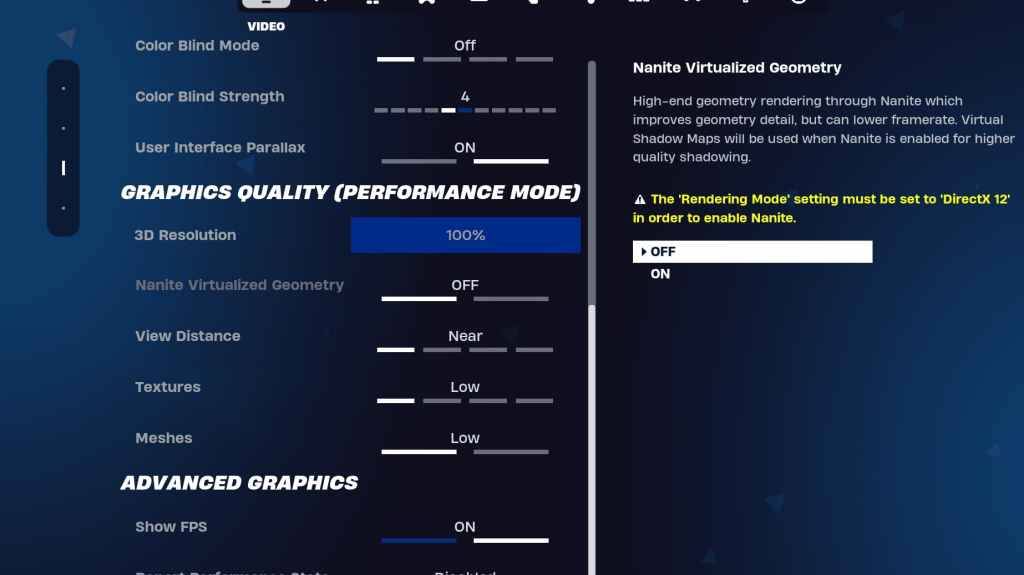
The Graphics section heavily influences visual quality and performance. Prioritize lower resource usage for higher frame rates:
| Setting | Recommended |
|---|---|
| Quality Preset | Low |
| Anti-Aliasing & Super Resolution | Off/Low |
| 3D Resolution | 100% (70-80% for low-end PCs) |
| Nanite Virtual Geometry (DX12) | Off |
| Shadows | Off |
| Global Illumination | Off |
| Reflections | Off |
| View Distance | Epic |
| Textures | Low |
| Effects | Low |
| Post Processing | Low |
| Hardware Ray Tracing | Off |
| Nvidia Low Latency Mode | On + Boost (Nvidia GPUs) |
| Show FPS | On |
Game Settings
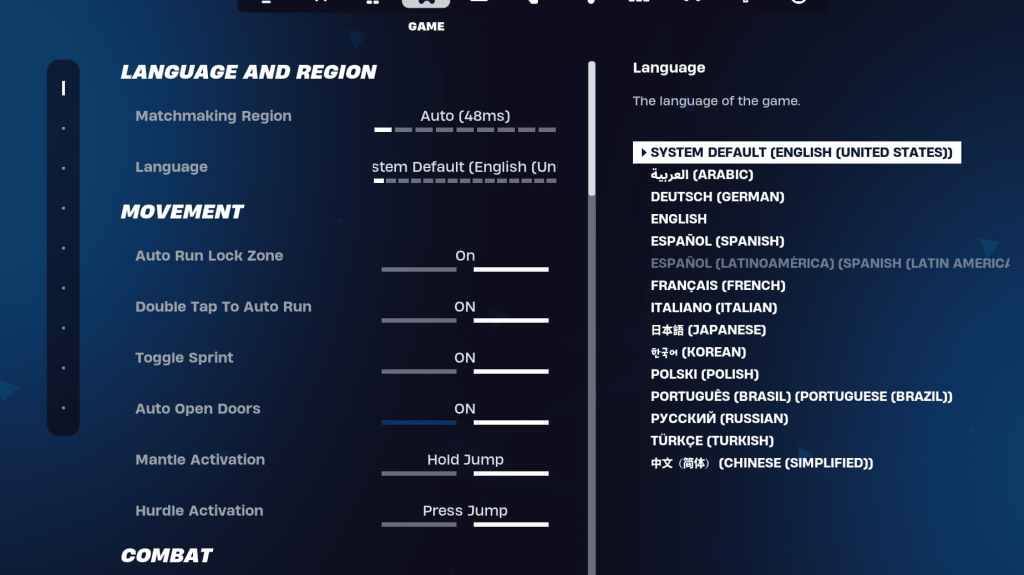
Game settings impact gameplay, not FPS. While many are subjective, these are key considerations:
- Movement: Auto Open Doors: On; Double Tap to Auto Run: On (controllers)
- Combat: Hold to Swap Pickup: On; Toggle Targeting: Personal Preference; Auto Pickup Weapons: On
- Building: Reset Building Choice: Off; Disable Pre-edit Option: Off; Turbo Building: Off; Auto-Confirm Edits: Personal Preference; Simple Edit: Personal Preference; Tap to Simple Edit: On (if Simple Edit is on)
Audio Settings
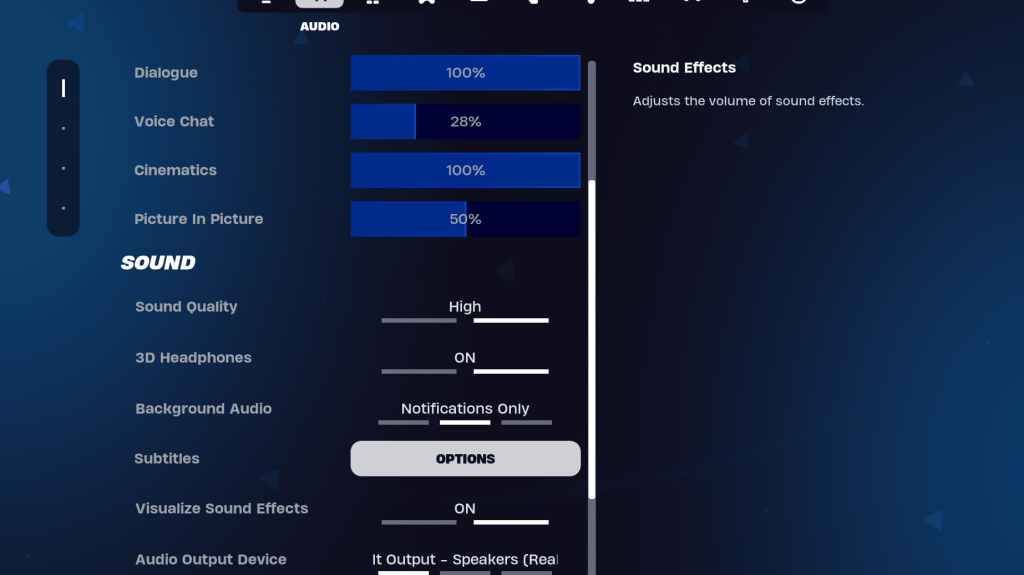
Clear audio is vital. Enable 3D Headphones (experiment for compatibility) and Visualize Sound Effects for enhanced spatial awareness.
Keyboard and Mouse Settings
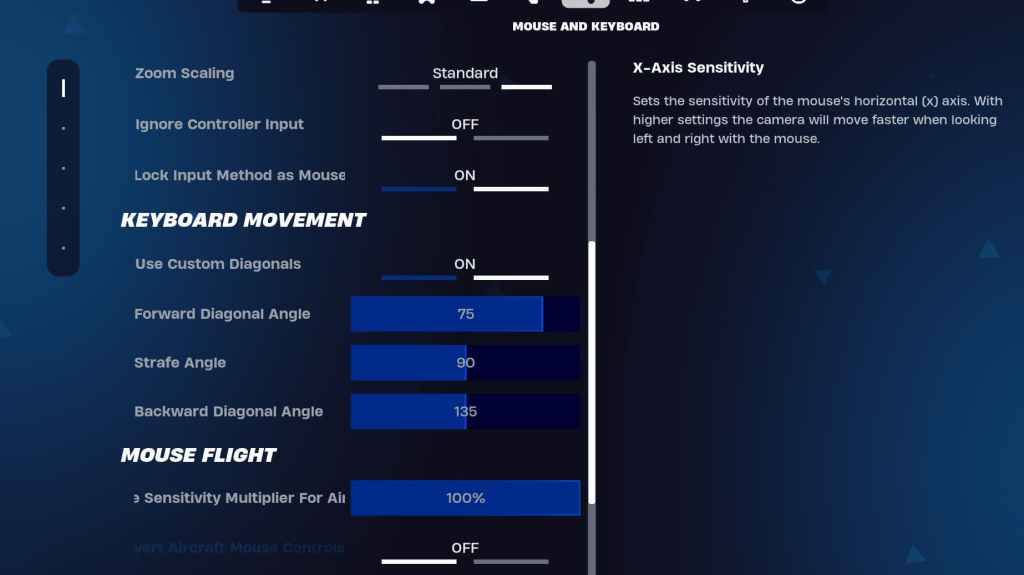
Configure sensitivity and keybinds in the Keyboard and Mouse and Keyboard Controls tabs to suit your preferences. Consider:
- Sensitivity: Adjust X/Y, Targeting, Scope, and Building/Editing sensitivities to your liking.
- Movement: Use Custom Diagonals: On; adjust Forward, Strafe, and Backward Angles as needed.
By implementing these settings, you'll significantly improve your Fortnite performance and enjoy a smoother, more competitive gaming experience. Remember that optimal settings may vary slightly depending on your specific hardware.
Latest Articles
My Little Pomodoro Boosts Focus, Hits Android
Most productivity timers demand your focus. Devfloor's new release, My Little Pomodoro: Focus, actually gives something in return. This charming Android app transforms concentration into a rewarding experience rather than a tedious obligation.Underst
Tekken 8 Director Slams Fan Over Anna Williams' New Look: 'Unconstructive and Pointless'
Play
Tekken 8 veteran Anna Williams is making her return to the roster, and while her redesigned look has been well received by the majority of fans, it has also sparked some debate—particularly over comparisons of her new outfit to Santa Claus.
When a fan asked Tekken game director and chief prod
Ready or Not Shares Update in Censorship and Review-Bomb Fight
VOID Interactive has responded to player criticism following updates to the PC version of its controversial shooter Ready or Not, implemented to secure its console release. The studio clarified there have been "misconceptions and misinformation" rega
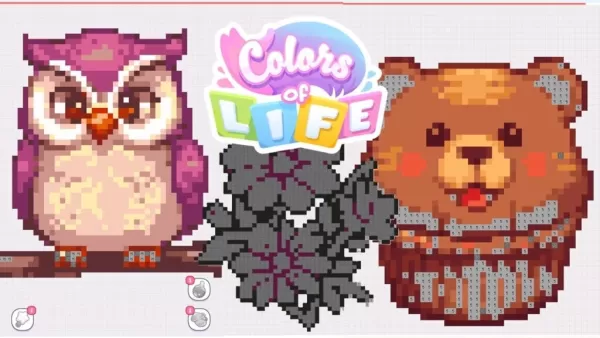
Colors of Life: 365 New Mobile Puzzles Annually
Colors of Life is an Android game that offers a fresh take on coloring. As the name suggests, you fill in colors, combining classic color-by-number mechanics with pixel art style. Developed by Rursus, it’s free to play with optional extras available
Classic Fire Emblem Game Hits Nintendo Switch Online
Surprise! Fire Emblem: The Sacred Stones is now available in the Nintendo Switch Online game library.Originally hitting the Game Boy Advance in 2004, this title only reached Western audiences in 2005. It’s a standalone story following Renais' twin ro

Madoka Magica: Magia Exedra Scene 0 Part 1 Release Imminent
Puella Magi Madoka Magica Magia Exedra is set to launch a new update soon. Aniplex is introducing a limited-time event quest titled "Puella Magi Madoka Magica: Scene 0 Part I." This marks the beginning of a three-part story arc that will later integr
Latest Games
تخته نرد حرفه ای
Card丨3.20M
Militar Macizo
Action丨32.8 MB

Obama Run!
Action丨78.6 MB

Rake Monster
Action丨200.2 MB

Мафия России: Сибирская Братва
Adventure丨201.1 MB
Touchgrind X
Sports丨960.3 MB

TopTop KSA(توب توب KSA)
Casual丨265.5 MB








Top News
MORE +

01
01-07
BREAKING: Flight Simulator 2024 Login Woes Ground Players
Flight Simulator 2024 Launch Plagued by Technical Difficulties
The highly anticipated launch of Flight Simulator 2024 has been significantly hampered by widespread technical problems, leaving many players grounded before they could even take to the virtual skies. This article details the reported d
02
01-06
CDPR acknowledged weak gameplay in The Witcher 3
The Witcher 3, while critically acclaimed, wasn't without its flaws. Many fans felt the combat system fell short.
In a recent interview, Witcher 4's game director, Sebastian Kalemba, acknowledged weaknesses in the previous game's gameplay, specifically highlighting the need for significant improvem
03
11-17
Hogwarts Legacy 2 is "One of the Biggest Priorities" for WB Games
Following the successful launch of Quidditch Champions this week, Warner Bros. Discovery has confirmed its plans for a sequel to last year's Harry Potter-based action RPG hit Hogwarts Legacy—2023's best-selling game.Hogwarts Legacy Sequel Plans Confirmed by Warner Bros. DiscoveryExpected in
04
11-16
Airplane Chefs Brings The Ultimate Snack, Pringles, On Board!
Buckle up for some snacks as Nordcurrent has just dropped an exciting event for their cooking game. It’s the most unexpected collab of Airplane Chefs and Pringles. If you’ve been enjoying your virtual life as a flight attendant, things are about to get a lot tastier.The game developer behind p
05
11-16
Play Together to collaborate with Sanrio and introduce new My Melody and Kuromi content
Play Together is bringing back its Sanrio collab with the appearance of My Melody and KuromiYou can collect coins by completing their themed missions that can then be used to draw exclusive itemsAs a bonus there's also new summer-themed content and events, including a major bug huntPlay Together, th
Topics
More +