
"Modding Stardew Valley: A Step-by-Step Guide"
Author : Zachary
May 02,2025
While the most recent update of *Stardew Valley* has captured the hearts of many, the modding community has been enhancing the game's experience for even longer. Mods allow players to expand NPC stories, introduce new cosmetic items, and unleash their creativity in countless ways. Here’s a comprehensive guide on how to mod *Stardew Valley* on Windows to enrich your gameplay further.
How To Mod Stardew Valley For Windows:
Step One: Back Up Your Save File
This step is highly recommended, especially if you've invested significant time into your game. Backing up your save file ensures your farm and progress remain safe and secure. If you're starting fresh, this step might be unnecessary, but for those who've spent hours nurturing friendships and expanding their artisanal empire, losing that progress would be devastating.
To back up your save file:
- Press Win + R to open the Run dialog box.
- Type %appdata% and press Enter.
- Navigate to the 'Stardew Valley' folder, then open the 'Saves' folder.
- Copy and paste the contents to a safe location on your laptop or PC.
Step Two: Install SMAPI
SMAPI, or Stardew Modding API, is essential as it acts as a mod loader that seamlessly integrates your mods into the game. You can download SMAPI directly from its official website.
After downloading, extract the SMAPI ZIP file to a convenient location on your computer, such as your desktop or downloads folder. Remember, SMAPI is not a mod itself but a tool that enables modding. Do not extract it into the mod folder.
Once extracted, run SMAPI and select "install on Windows," then follow the on-screen instructions.
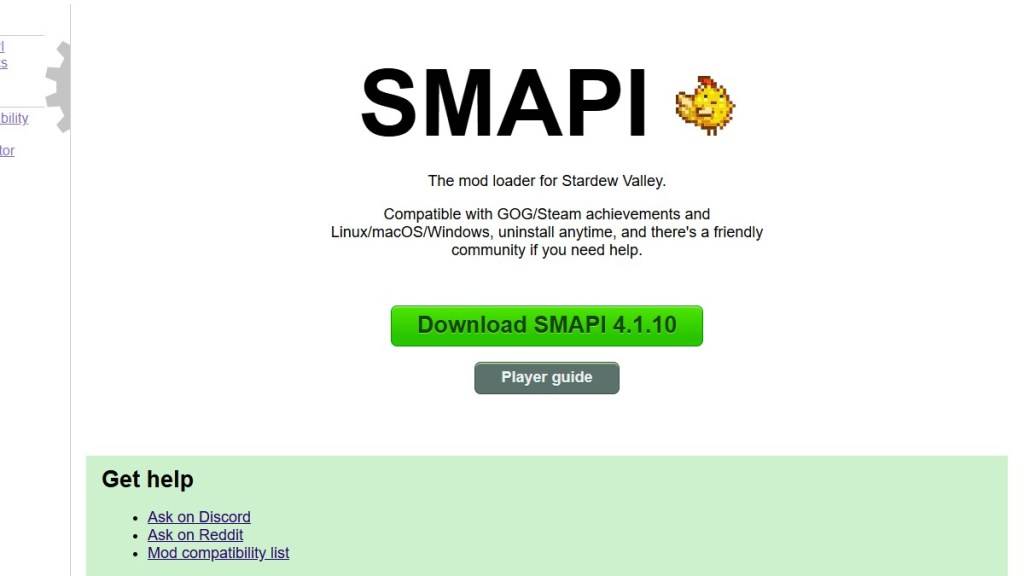
Image via SMAPI.io
Step Three: Configure Your Game Client
If you play *Stardew Valley* through platforms like Steam, GOG Galaxy, or the Xbox App, you might need to configure your game client to continue tracking playtime and earning achievements. For detailed instructions on how to do this, you can refer to the official SMAPI documentation.
Step Four: Installing Mods
Now comes the fun part—installing mods to customize your *Stardew Valley* experience.

Image via Nexus Mods
Nexus Mods is a premier destination for *Stardew Valley* mods, offering a vast selection to keep you engaged. Mods are usually downloaded as ZIP files, which you'll need to extract. Once extracted, move the mod files into the 'Mods' folder, which SMAPI automatically creates during installation. You can find the 'Mods' folder at the following locations:
- Steam: C:\Program Files (x86)\Steam\steamapps\common\Stardew Valley
- GOG Galaxy: C:\Program Files (x86)\GOG Galaxy\Games\Stardew Valley
- Xbox App: C:\XboxGames\Stardew Valley
With over 1000 mods available on Nexus Mods alone, there's an endless array of options to keep both new and veteran players engaged and excited.
*Stardew Valley* is available now, and with these modding steps, you can transform your gaming experience to match your unique vision and creativity.
Latest Articles

Mutants: Genesis Hits iOS, Android, Steam After Early Access
Clash Royale players finally get to witness the highly anticipated evolution of the Inferno Dragon. After nearly a decade without an upgrade, this fiery Legendary card receives a powerful transformation. The developers at Supercell teamed up with Fin

Pokemon GO Road Trip 2025 Details, Summer Pikachu Available
Experience Pokémon GO Road Trip Truck stops in the gameFind Wooloo, Phanpy, and Alolan Geodude in the wildSummer-style Pikachu makes a special appearanceIf today's new details don't get you excited for the Pokemon GO Road Trip 2025, nothing will. Thi

PlayStation Stars Shuts Down After 3 Years
Sony has announced the discontinuation of its PlayStation Stars loyalty program less than three years after its introduction.The rewards initiative stopped accepting new members today, with exiting participants unable to rejoin. Canceling membership
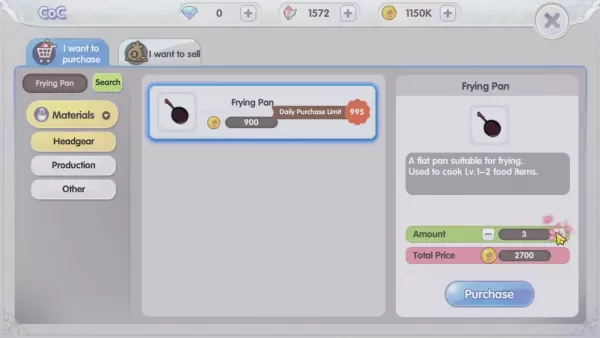
Mastering Cooking in Ragnarok X: Next Generation
Cooking in Ragnarok X: Next Generation is a dynamic system that enhances combat, resource gathering, and character progression. Preparing dishes grants temporary boosts, improving dungeon survivabilit

Poppy Playtime Chapter 4 Launches with Introductory Sale
Uncover new characters and a deeper backstoryNavigate the depths of the Playtime Co. factoryLimited-time introductory discount availableMob Entertainment has officially released Poppy Playtime Chapter 4, allowing you to dive into the next chilling ch

Japan Expansion for Ticket to Ride: Build the Bullet Train Network!
Ticket to Ride now lets you embark on a virtual train journey across Japan with its latest expansion. Marmalade Game Studio and Asmodee Entertainment have launched the Japan Expansion for their digital adaptation of the classic board game.
Help Build
Latest Games

Savanna Race
Racing丨24.8 MB

Bridge Car Race
Racing丨36.0 MB


Top Jockey
Racing丨251.6 MB

Hill Climb Racing
Racing丨116.2 MB

Zombie Derby 2
Racing丨66.3 MB

Sunset Bike Racer - Motocross
Racing丨47.9 MB

Racing Rivals
Racing丨217.5 MB










Top News
MORE +

01
01-06
CDPR acknowledged weak gameplay in The Witcher 3
The Witcher 3, while critically acclaimed, wasn't without its flaws. Many fans felt the combat system fell short.
In a recent interview, Witcher 4's game director, Sebastian Kalemba, acknowledged weaknesses in the previous game's gameplay, specifically highlighting the need for significant improvem
02
01-07
BREAKING: Flight Simulator 2024 Login Woes Ground Players
Flight Simulator 2024 Launch Plagued by Technical Difficulties
The highly anticipated launch of Flight Simulator 2024 has been significantly hampered by widespread technical problems, leaving many players grounded before they could even take to the virtual skies. This article details the reported d
03
11-17
Hogwarts Legacy 2 is "One of the Biggest Priorities" for WB Games
Following the successful launch of Quidditch Champions this week, Warner Bros. Discovery has confirmed its plans for a sequel to last year's Harry Potter-based action RPG hit Hogwarts Legacy—2023's best-selling game.Hogwarts Legacy Sequel Plans Confirmed by Warner Bros. DiscoveryExpected in
04
11-16
Airplane Chefs Brings The Ultimate Snack, Pringles, On Board!
Buckle up for some snacks as Nordcurrent has just dropped an exciting event for their cooking game. It’s the most unexpected collab of Airplane Chefs and Pringles. If you’ve been enjoying your virtual life as a flight attendant, things are about to get a lot tastier.The game developer behind p
05
11-16
Play Together to collaborate with Sanrio and introduce new My Melody and Kuromi content
Play Together is bringing back its Sanrio collab with the appearance of My Melody and KuromiYou can collect coins by completing their themed missions that can then be used to draw exclusive itemsAs a bonus there's also new summer-themed content and events, including a major bug huntPlay Together, th
Topics
More +