Connect PS VR2 Headset to PC: Ultimate Guide
Author : Harper
Feb 23,2025
Unlocking the PlayStation VR2 on PC: A Comprehensive Guide
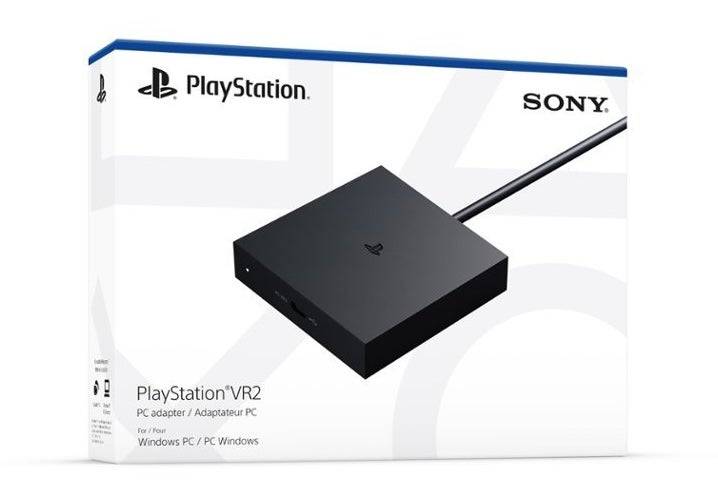
For PS VR2 owners eager to explore SteamVR's vast library, the $60 official adapter opens a world of PC VR gaming. However, the setup isn't entirely plug-and-play. This guide provides a detailed walkthrough, addressing potential pitfalls.
Essential Requirements:
Before starting, ensure your PC meets the minimum specifications (check Sony's official PS VR2 PC Adapter preparation page). You'll need:
- PlayStation VR2 headset
- PlayStation VR2 PC adapter (includes AC adapter and USB 3.0 Type-A cable)
- DisplayPort 1.4 cable (sold separately)
- Free USB 3.0 Type-A port (avoid extension cables or hubs, though a powered hub may work)
- Bluetooth 4.0 capability (built-in or via an external adapter)
- Steam and SteamVR installed
- PlayStation VR2 app (available on Steam)
- Two USB-C charging ports and cables for the Sense controllers (or the Sony Sense controller charging station)
Step-by-Step Connection:
-
Software Installation: Install Steam, SteamVR, and the PlayStation VR2 app.
-
Bluetooth Pairing: Enable Bluetooth on your PC. Put your Sense controllers into pairing mode (hold PlayStation and Create buttons). Add them as Bluetooth devices in your PC's settings. If using an external Bluetooth adapter alongside a built-in one, disable the built-in adapter in Device Manager.
-
Adapter Setup: Connect the adapter to your PC's USB 3.0 port and your GPU's DisplayPort 1.4 port. Connect the AC power adapter. The adapter's indicator will turn solid red when powered on. Connect the PS VR2 headset to the adapter's USB-C port.
-
Optional: Disable Hardware-accelerated GPU Scheduling: For newer GPUs (e.g., Nvidia RTX 40-series), disabling this setting in Windows Graphics settings may improve stability. Restart your PC afterwards.
-
Launch and Setup: Power on the PS VR2 headset. Launch SteamVR, setting it as your default OpenXR runtime. Open the PlayStation VR2 app to update controller firmware and complete headset setup (Play Area, IPD, display distance, etc.).
Direct Connection (Without Adapter):
Currently, a direct connection without the adapter is unreliable. While some users report success using a VirtualLink-enabled GPU (circa 2018) and the PlayStation VR2 app, this is not officially supported.
This comprehensive guide ensures a smooth setup, allowing you to enjoy the full potential of your PlayStation VR2 on your PC.
Latest Articles
Konami Livestream: Metal Gear Solid Delta, Silent Hill f Details Revealed This Week
Play I'm particularly hopeful that Konami’s mention of "and more" will include No Code’s Silent Hill Townfall. It’s been years since we’ve received meaningful updates, and I’m eager to learn more. I’m also still waiting for news on future remakes or
Black Ops 7 Rating Hints at Premium Content Continuation
Call of Duty fans think they've found evidence suggesting that Call of Duty: Black Ops 7 will let players transfer their cosmetic skins from Black Ops 6.The ESRB rating has confirmed Black Ops 7 will be rated M for Mature 17+ and release on PC, PS5,
My Little Pomodoro Boosts Focus, Hits Android
Most productivity timers demand your focus. Devfloor's new release, My Little Pomodoro: Focus, actually gives something in return. This charming Android app transforms concentration into a rewarding experience rather than a tedious obligation.Underst
Tekken 8 Director Slams Fan Over Anna Williams' New Look: 'Unconstructive and Pointless'
Play
Tekken 8 veteran Anna Williams is making her return to the roster, and while her redesigned look has been well received by the majority of fans, it has also sparked some debate—particularly over comparisons of her new outfit to Santa Claus.
When a fan asked Tekken game director and chief prod
Ready or Not Shares Update in Censorship and Review-Bomb Fight
VOID Interactive has responded to player criticism following updates to the PC version of its controversial shooter Ready or Not, implemented to secure its console release. The studio clarified there have been "misconceptions and misinformation" rega
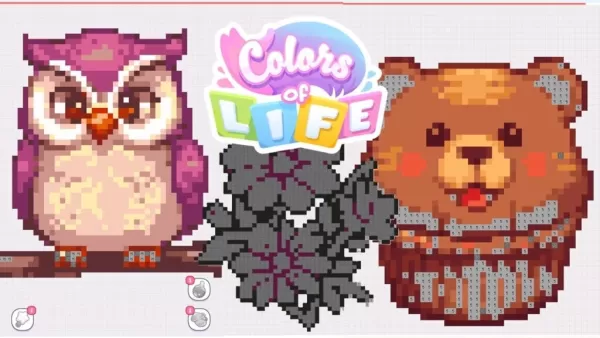
Colors of Life: 365 New Mobile Puzzles Annually
Colors of Life is an Android game that offers a fresh take on coloring. As the name suggests, you fill in colors, combining classic color-by-number mechanics with pixel art style. Developed by Rursus, it’s free to play with optional extras available
Latest Games

Game Vault:Slots Game
Card丨46.10M

Just Dance Now
Music丨127.48MB

Boarding School
Casual丨190.30M
Motorbike Rush Drive Simulator
Racing丨88.3 MB


Project Pentjet
Music丨6.51MB

3D World - Puzzle game
Educational丨63.75MB

تخته نرد حرفه ای
Card丨3.20M








Top News
MORE +

01
01-07
BREAKING: Flight Simulator 2024 Login Woes Ground Players
Flight Simulator 2024 Launch Plagued by Technical Difficulties
The highly anticipated launch of Flight Simulator 2024 has been significantly hampered by widespread technical problems, leaving many players grounded before they could even take to the virtual skies. This article details the reported d
02
01-06
CDPR acknowledged weak gameplay in The Witcher 3
The Witcher 3, while critically acclaimed, wasn't without its flaws. Many fans felt the combat system fell short.
In a recent interview, Witcher 4's game director, Sebastian Kalemba, acknowledged weaknesses in the previous game's gameplay, specifically highlighting the need for significant improvem
03
11-17
Hogwarts Legacy 2 is "One of the Biggest Priorities" for WB Games
Following the successful launch of Quidditch Champions this week, Warner Bros. Discovery has confirmed its plans for a sequel to last year's Harry Potter-based action RPG hit Hogwarts Legacy—2023's best-selling game.Hogwarts Legacy Sequel Plans Confirmed by Warner Bros. DiscoveryExpected in
04
11-16
Airplane Chefs Brings The Ultimate Snack, Pringles, On Board!
Buckle up for some snacks as Nordcurrent has just dropped an exciting event for their cooking game. It’s the most unexpected collab of Airplane Chefs and Pringles. If you’ve been enjoying your virtual life as a flight attendant, things are about to get a lot tastier.The game developer behind p
05
11-16
Play Together to collaborate with Sanrio and introduce new My Melody and Kuromi content
Play Together is bringing back its Sanrio collab with the appearance of My Melody and KuromiYou can collect coins by completing their themed missions that can then be used to draw exclusive itemsAs a bonus there's also new summer-themed content and events, including a major bug huntPlay Together, th
Topics
More +