"Optimal Free Fire Settings for Easy Headshots"
Author : Benjamin
Apr 16,2025
Free Fire, developed by Garena, is a thrilling battle royale game that has won over millions of fans around the globe. Designed specifically for mobile devices, it offers an exhilarating mix of survival, strategy, and action. Each game lasts roughly 10 minutes, perfect for those looking for a quick yet intense gaming experience. In Free Fire, diamonds are the premium currency that lets players unlock new customization options for characters, vehicles, and weapons. This guide will explore various methods for obtaining free diamonds within the game. Dive in to learn more!
What are Headshots?
In Free Fire, headshots are the ultimate technique for swiftly taking down opponents. A well-executed headshot can instantly knock an enemy out of the game, giving you a crucial edge. Mastering this skill involves perfecting your settings, techniques, and dedicating time to practice.
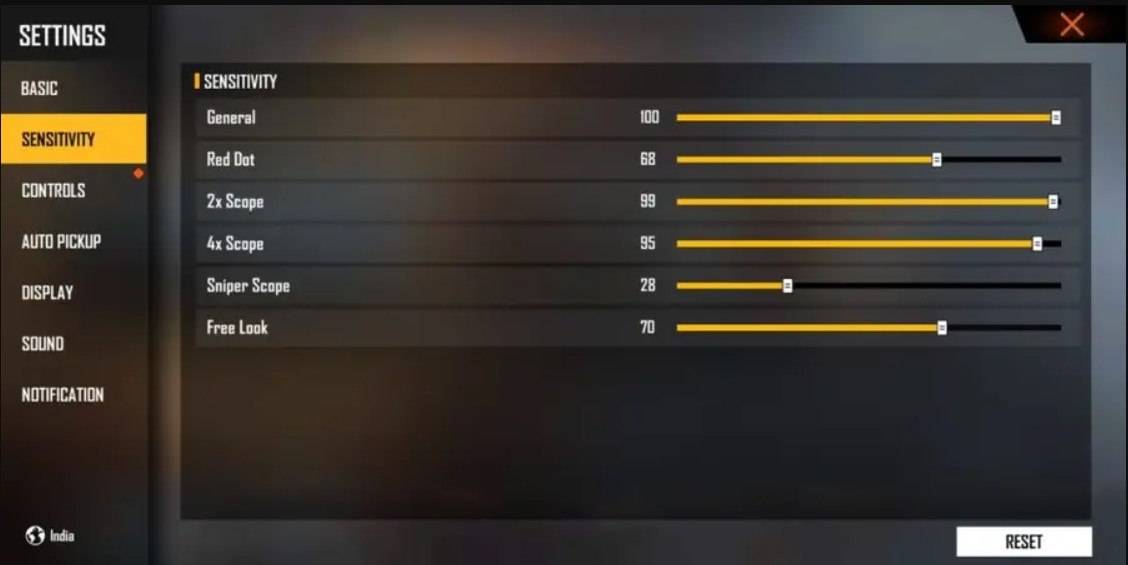
Sensitivity settings in Free Fire are key to how fast and accurately you can aim and adjust your shots. Optimizing these settings can significantly enhance your headshot success rate without the need for hacks or extra tools. By fine-tuning them, you improve your character's movement and ability to track enemies, particularly when aiming for their heads.
Best Sensitivity Settings for Headshots
Adjusting your sensitivity settings is vital for improving your aim, especially for those critical headshots. Here's how you can fine-tune your settings for smoother, more precise crosshair movement:
- Aim Precision: Set to default
- Left Fire Button: Always
- Reload Progress on Crosshair: Off
- Hold Fire to Scope: On
- Grenade Slot: Double Slot
- Vehicle Controls: Two-handed
- Auto-parachute: On
- Quick Weapon Switch: On
- Quick Reload: Off
- Run Mode: Classic
- Free Look: On
Optimize your HUD Layout
Your HUD (Heads-Up Display) layout is essential for enhancing your gameplay. Customizing it to fit your style can significantly boost your performance.
- Fire Button Placement: Position the fire button where your thumb can reach it comfortably. Many pro players prefer a three-finger or four-finger claw setup for enhanced control.
- Drag Shooting: Enable the “drag shoot” technique by adjusting the fire button size to 50-70%. A larger button facilitates more precise swiping for headshots.
- Quick Weapon Switch: Place the weapon switch button close to your thumb for swift access, ensuring you're always ready to aim for the head.
- Crouch and Jump Buttons: Position these near your movement controls to effectively execute the crouch + shoot and jump + shoot techniques.
- Scope Button: Keep the scope button near your index finger for quick aiming and better headshot alignment.
Increase your Headshot Accuracy Using BlueStacks Tools
While mobile screens are great for navigating the game's terrain, they can be limiting when aiming for headshots. BlueStacks offers a solution with its features designed to improve your aim on a larger screen, such as your PC or laptop. Here are the top features of BlueStacks that can help Free Fire players enhance their headshot accuracy:
- Keyboard and Mouse Support: BlueStacks enables you to use keyboard and mouse controls, which provide better accuracy and ease of aiming compared to touch controls. You can assign keys for movement, aiming, and shooting, simulating a PC gaming experience.
- Customizable Key Mapping: With the key mapping feature, you can tailor controls to your liking. For headshots, map the fire button to your mouse for smoother drag shots and faster reactions.
- Enhanced Graphics and Performance: BlueStacks lets you crank up the graphics to the max without worrying about lag or overheating, ensuring a smoother gameplay experience and better focus on aiming.
- Improved Sensitivity Settings: BlueStacks allows for precise sensitivity adjustments, giving you better control over your drag shots and scoped headshots.
Experience Free Fire in a whole new way on a larger screen using your PC or laptop with BlueStacks, complete with keyboard and mouse controls to elevate your gameplay!
Latest Articles
Hand-Drawn Photography Adventure Game TOEM Opens Pre-Registration on Mobile
BAFTA-winning title TOEM: A Photo Adventure arrives on mobile devices worldwide.
Developed by Swedish indie studio Something We Made, pre-registration for TOEM is now available on Android. The official release date is set for October 22nd.
Fun fact:
Mutants: Genesis Hits iOS, Android, Steam After Early Access
Clash Royale players finally get to witness the highly anticipated evolution of the Inferno Dragon. After nearly a decade without an upgrade, this fiery Legendary card receives a powerful transformation. The developers at Supercell teamed up with Fin
Pokemon GO Road Trip 2025 Details, Summer Pikachu Available
Experience Pokémon GO Road Trip Truck stops in the gameFind Wooloo, Phanpy, and Alolan Geodude in the wildSummer-style Pikachu makes a special appearanceIf today's new details don't get you excited for the Pokemon GO Road Trip 2025, nothing will. Thi
PlayStation Stars Shuts Down After 3 Years
Sony has announced the discontinuation of its PlayStation Stars loyalty program less than three years after its introduction.The rewards initiative stopped accepting new members today, with exiting participants unable to rejoin. Canceling membership
Mastering Cooking in Ragnarok X: Next Generation
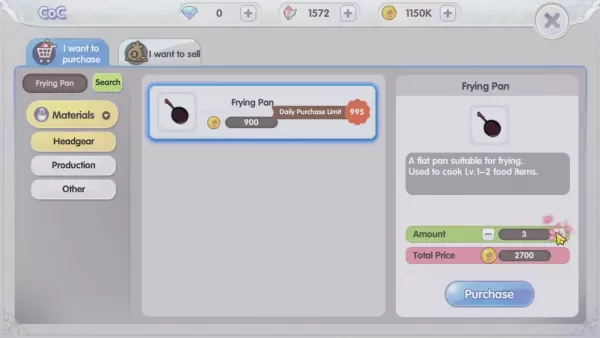
Cooking in Ragnarok X: Next Generation is a dynamic system that enhances combat, resource gathering, and character progression. Preparing dishes grants temporary boosts, improving dungeon survivabilit
Poppy Playtime Chapter 4 Launches with Introductory Sale
Uncover new characters and a deeper backstoryNavigate the depths of the Playtime Co. factoryLimited-time introductory discount availableMob Entertainment has officially released Poppy Playtime Chapter 4, allowing you to dive into the next chilling ch
Latest Games
Cooking ASMR
Puzzle丨167.3 MB
Coins Collector Inc. Idle
Puzzle丨59.8 MB
DOP Delete Stories
Puzzle丨176.3 MB

Home Design Redecoration
Puzzle丨127.3 MB
Kral Şakir - Boyama Kitabı
Casual丨38.5 MB
Math Cross
Puzzle丨11.1 MB





Top News
MORE +

01
01-06
CDPR acknowledged weak gameplay in The Witcher 3
The Witcher 3, while critically acclaimed, wasn't without its flaws. Many fans felt the combat system fell short.
In a recent interview, Witcher 4's game director, Sebastian Kalemba, acknowledged weaknesses in the previous game's gameplay, specifically highlighting the need for significant improvem
02
01-07
BREAKING: Flight Simulator 2024 Login Woes Ground Players
Flight Simulator 2024 Launch Plagued by Technical Difficulties
The highly anticipated launch of Flight Simulator 2024 has been significantly hampered by widespread technical problems, leaving many players grounded before they could even take to the virtual skies. This article details the reported d
03
11-17
Hogwarts Legacy 2 is "One of the Biggest Priorities" for WB Games
Following the successful launch of Quidditch Champions this week, Warner Bros. Discovery has confirmed its plans for a sequel to last year's Harry Potter-based action RPG hit Hogwarts Legacy—2023's best-selling game.Hogwarts Legacy Sequel Plans Confirmed by Warner Bros. DiscoveryExpected in
04
11-16
Airplane Chefs Brings The Ultimate Snack, Pringles, On Board!
Buckle up for some snacks as Nordcurrent has just dropped an exciting event for their cooking game. It’s the most unexpected collab of Airplane Chefs and Pringles. If you’ve been enjoying your virtual life as a flight attendant, things are about to get a lot tastier.The game developer behind p
05
11-16
Play Together to collaborate with Sanrio and introduce new My Melody and Kuromi content
Play Together is bringing back its Sanrio collab with the appearance of My Melody and KuromiYou can collect coins by completing their themed missions that can then be used to draw exclusive itemsAs a bonus there's also new summer-themed content and events, including a major bug huntPlay Together, th
Topics
More +