Splitgate 2 Best Settings for High FPS and Visibility
Author : Lillian
Mar 21,2025
Splitgate 2 is one of the most anticipated games of 2025, a highly-anticipated sequel to a beloved title. While still in Alpha, performance issues like crashes and frame drops are expected. Optimizing your settings can significantly mitigate these problems, ensuring a smoother, more responsive gameplay experience. Here's how to achieve high frame rates and minimize input lag in Splitgate 2.
Recommended Videos
**Related: What Is Splitgate 2’s Release Date?**
Splitgate 2 System Requirements
Before optimizing, ensure your system meets the minimum requirements. Fortunately, Splitgate 2 isn't overly demanding.
Minimum:
- Processor: Intel® Core™ i3-6100 / Core™ i5-2500K or AMD Ryzen™ 3 1200
- Memory: 8 GB RAM
- Graphics: NVIDIA® GeForce® GTX 960 or AMD Radeon™ RX 470
Recommended:
- Processor: Intel® Core™ i5-6600K / Core™ i7-4770 or AMD Ryzen™ 5 1400
- Memory: 12 GB RAM
- Graphics: NVIDIA® GeForce® GTX 1060 or AMD Radeon™ RX 580
Splitgate 2 Best Video Settings
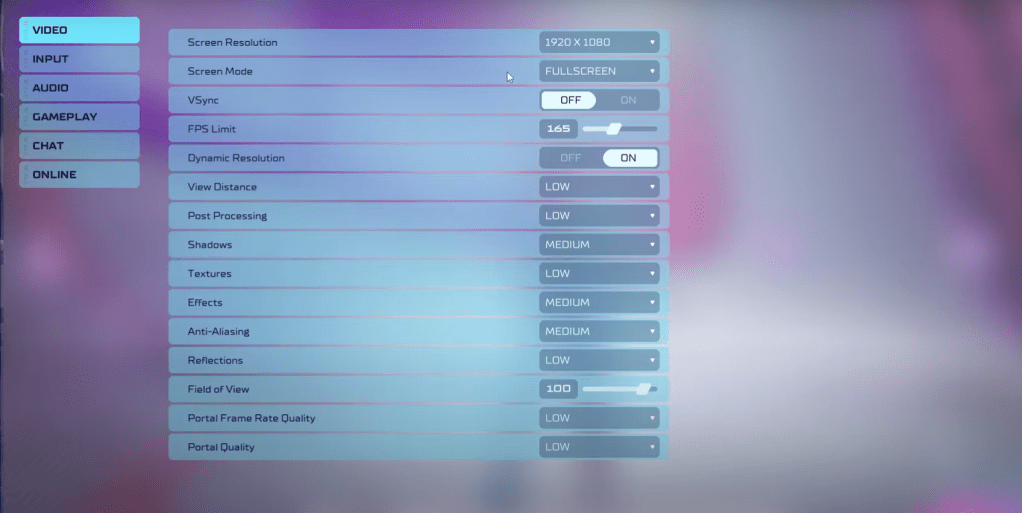
In competitive shooters like Splitgate 2, performance trumps visuals. Prioritize frame rate over graphical fidelity. The game may look less visually stunning, but it will play much better.
- Screen Resolution: Monitor's Native (1920x1080 is common)
- Screen Mode: Borderless Fullscreen (if you Alt+Tab frequently), otherwise Fullscreen.
- VSync: Off (significantly reduces input lag)
- FPS Limit: Monitor's Refresh Rate (60, 144, 165, 240, etc.)
- Dynamic Resolution: On (experiment with Off; results vary by system)
- View Distance: Low
- Post Processing: Low
- Shadows: Medium (Low for older systems)
- Effects: Low
- Anti-Aliasing: Low (increase if shimmering is noticeable)
- Reflection: Low
- Field of View: Maximum (though reducing slightly may improve performance)
- Portal Frame Rate Quality: Low
- Portal Quality: Low
Generally, prioritize the lowest settings. If the visuals are too poor, consider slightly increasing Effects and Anti-aliasing, as these have a relatively minor performance impact.
High Field of View (FOV) is crucial in competitive shooters for maximizing visibility. While maximizing FOV might impact frame rate, reducing it only slightly can yield significant performance gains without sacrificing much visual information.
Other Recommended Splitgate 2 Settings
These settings don't directly boost FPS, but are still recommended adjustments. Adjust sensitivity settings to your preference, potentially using online calculators for conversion from other games. Lower in-game music volume to reduce distractions. Enable Spatial Sound in Windows sound settings for enhanced audio cues—a helpful tip for any game.
These optimized settings will significantly improve your Splitgate 2 experience. Enjoy the smoother, more responsive gameplay!
Related: 10 of the Most Fun Games to Play With Friends
Latest Articles
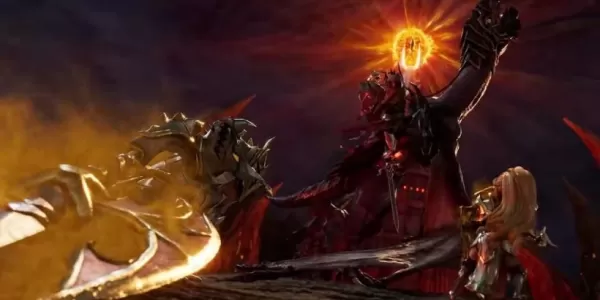
Summoners War set to host collaboration with the iconic fantasy book series The Lord of the Rings
Summoners War: Sky Arena has teamed up with none other than The Lord of the Rings.
Set to launch later this month, the collaboration brings iconic characters from the Fellowship and beyond into the game.
The Lord of the Rings needs no introduction—it

Another Eden expands its Chrono Cross collaboration content with Glenn and new story
Another Eden is introducing fresh content to its existing Chrono Cross collaboration materialThe release includes a beloved character named Glenn from The Cursed DragoonA new character and upcoming events are also being added to honor Japan Cat DayAl

The $13 FrSara Portable Neck Fan Is an Inexpensive Solution to Beating the Summer Heat
Summer has arrived, and neck fans are seeing a surge in popularity. These portable fans offer a simple, effective, and affordable way to stay cool and comfortable. Amazon is currently offering 50% off the FrSara Rechargeable Portable Neck Fan with th
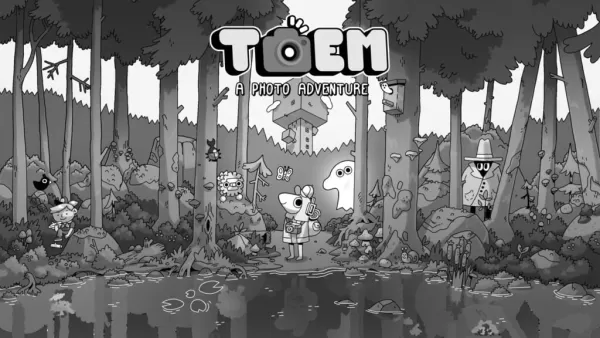
Hand-Drawn Photography Adventure Game TOEM Opens Pre-Registration on Mobile
BAFTA-winning title TOEM: A Photo Adventure arrives on mobile devices worldwide.
Developed by Swedish indie studio Something We Made, pre-registration for TOEM is now available on Android. The official release date is set for October 22nd.
Fun fact:
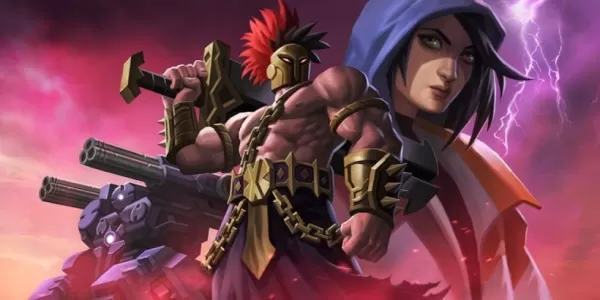
Mutants: Genesis Hits iOS, Android, Steam After Early Access
Clash Royale players finally get to witness the highly anticipated evolution of the Inferno Dragon. After nearly a decade without an upgrade, this fiery Legendary card receives a powerful transformation. The developers at Supercell teamed up with Fin

Pokemon GO Road Trip 2025 Details, Summer Pikachu Available
Experience Pokémon GO Road Trip Truck stops in the gameFind Wooloo, Phanpy, and Alolan Geodude in the wildSummer-style Pikachu makes a special appearanceIf today's new details don't get you excited for the Pokemon GO Road Trip 2025, nothing will. Thi
Latest Games
Tizi Room Design & Home Decor
Simulation丨196.2 MB
Air Conditioning
Simulation丨27.6 MB


Passpartout 2
Simulation丨756.8 MB

Liga NOS Game
Sports丨35.2 MB

Bowling League-3d Bowling Game
Sports丨32.8 MB








Top News
MORE +

01
01-06
CDPR acknowledged weak gameplay in The Witcher 3
The Witcher 3, while critically acclaimed, wasn't without its flaws. Many fans felt the combat system fell short.
In a recent interview, Witcher 4's game director, Sebastian Kalemba, acknowledged weaknesses in the previous game's gameplay, specifically highlighting the need for significant improvem
02
01-07
BREAKING: Flight Simulator 2024 Login Woes Ground Players
Flight Simulator 2024 Launch Plagued by Technical Difficulties
The highly anticipated launch of Flight Simulator 2024 has been significantly hampered by widespread technical problems, leaving many players grounded before they could even take to the virtual skies. This article details the reported d
03
11-17
Hogwarts Legacy 2 is "One of the Biggest Priorities" for WB Games
Following the successful launch of Quidditch Champions this week, Warner Bros. Discovery has confirmed its plans for a sequel to last year's Harry Potter-based action RPG hit Hogwarts Legacy—2023's best-selling game.Hogwarts Legacy Sequel Plans Confirmed by Warner Bros. DiscoveryExpected in
04
11-16
Airplane Chefs Brings The Ultimate Snack, Pringles, On Board!
Buckle up for some snacks as Nordcurrent has just dropped an exciting event for their cooking game. It’s the most unexpected collab of Airplane Chefs and Pringles. If you’ve been enjoying your virtual life as a flight attendant, things are about to get a lot tastier.The game developer behind p
05
11-16
Play Together to collaborate with Sanrio and introduce new My Melody and Kuromi content
Play Together is bringing back its Sanrio collab with the appearance of My Melody and KuromiYou can collect coins by completing their themed missions that can then be used to draw exclusive itemsAs a bonus there's also new summer-themed content and events, including a major bug huntPlay Together, th
Topics
More +