Unleash Retro Vibes: Steam Deck Transforms into Game Boy Paradise
Author : Thomas
Feb 25,2025
This guide details how to install EmuDeck and play Game Boy games on your Steam Deck, optimizing performance with Decky Loader and Power Tools. The Steam Deck, with its PC-like capabilities, offers unparalleled customization for retro gaming.
Before You Begin:
 Ensure you have:
- A fully charged Steam Deck.
- An A2 microSD card for game and emulator storage.
- Legally obtained Game Boy ROMs.
- A Bluetooth or wired keyboard and mouse (recommended for easier navigation).
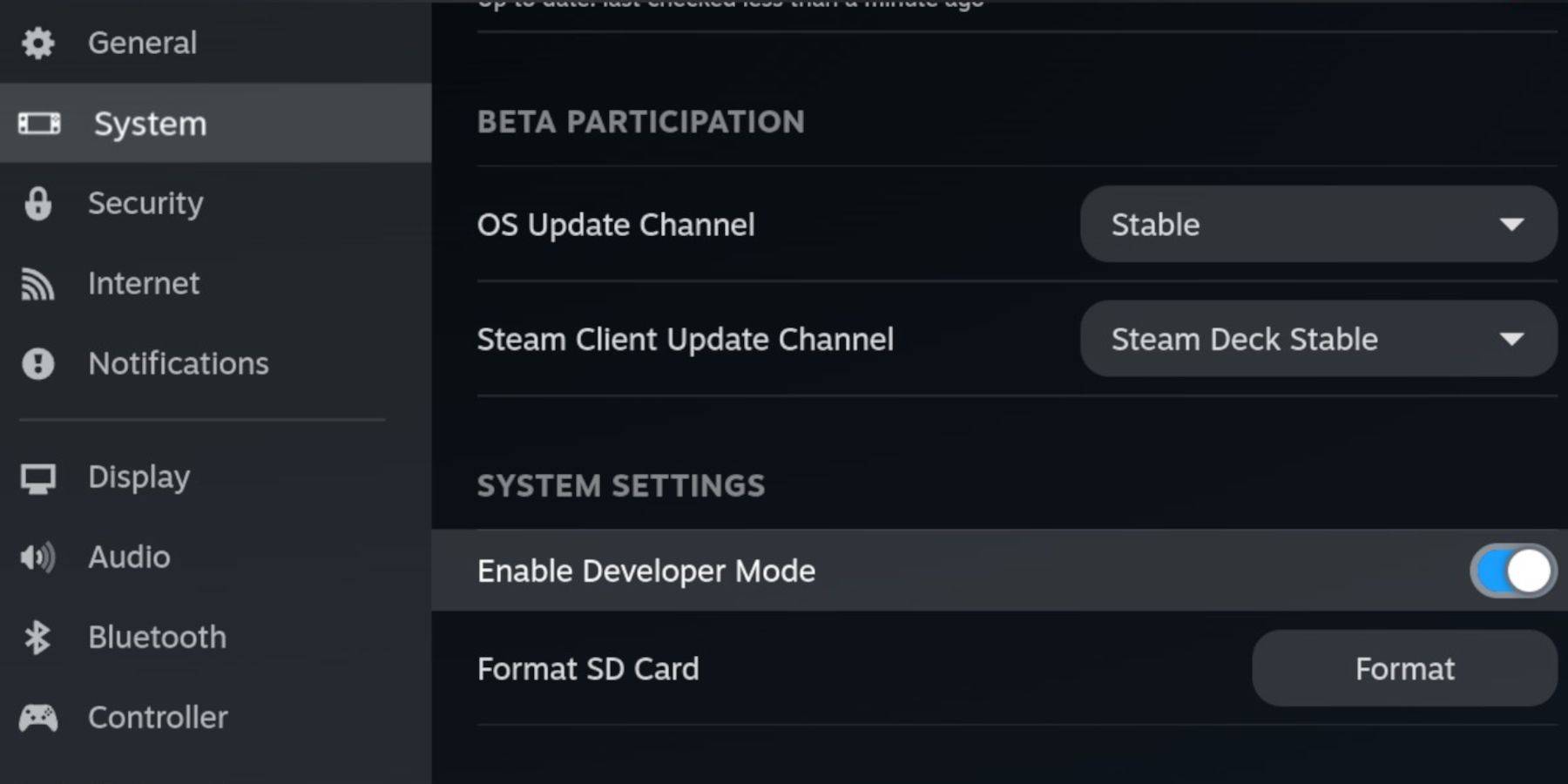
Enable Developer Mode:
- Press the Steam button.
- Navigate to System > Developer > Enable Developer Mode.
- Enable CEF Debugging in the Developer menu.
- Power > Switch to Desktop Mode.
Install EmuDeck:
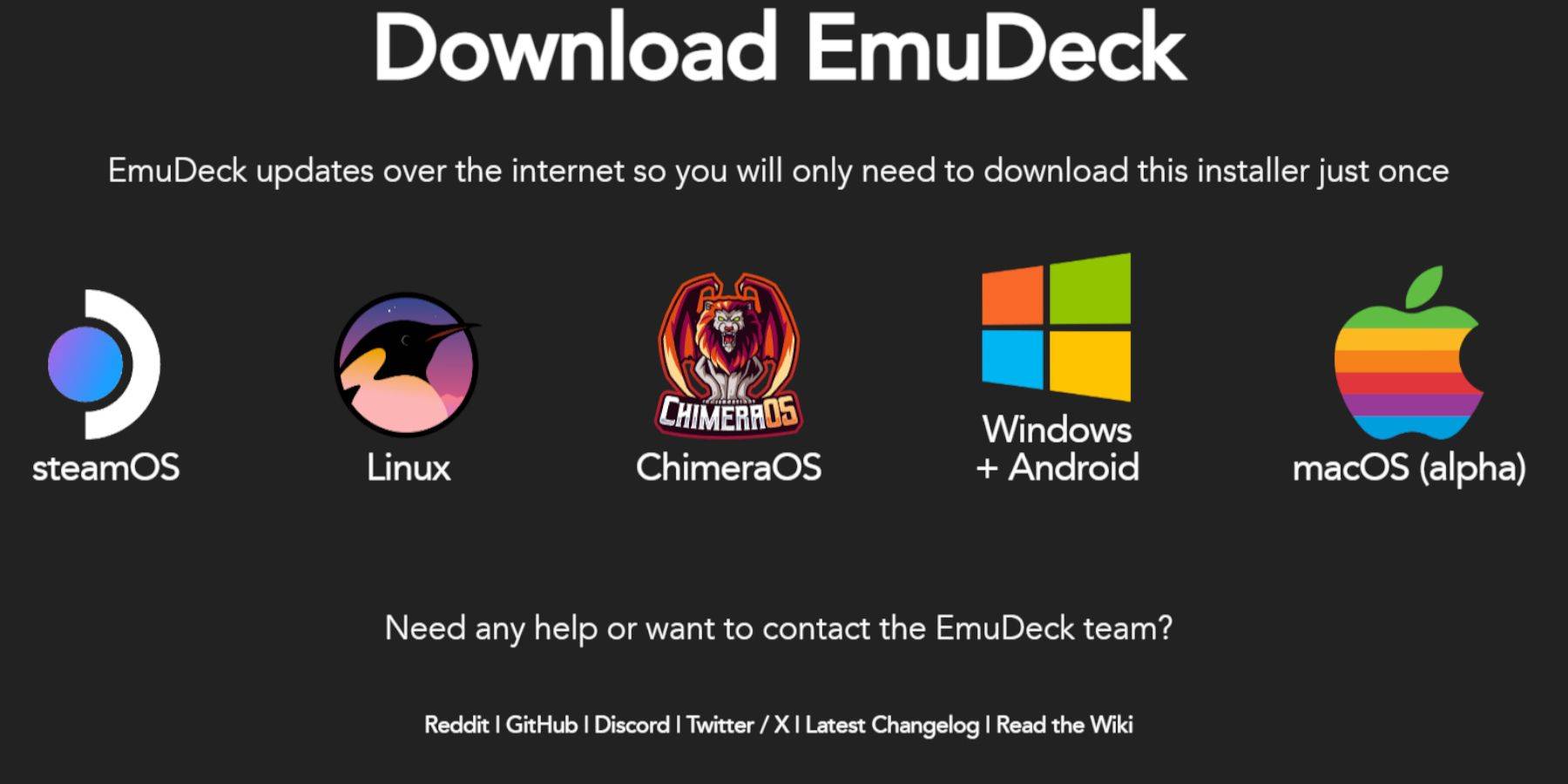
- Connect your keyboard and mouse.
- Download EmuDeck via a browser (e.g., Firefox, DuckDuckGo). Choose SteamOS and select "Download for Free."
- Select "Recommended Settings" then "Custom Install."
- Choose your SD card as the primary installation location.
- Select desired emulators (RetroArch, Emulation Station, Steam ROM Manager recommended).
- Enable Auto Save.
- Complete the installation.
Quick Settings (EmuDeck):
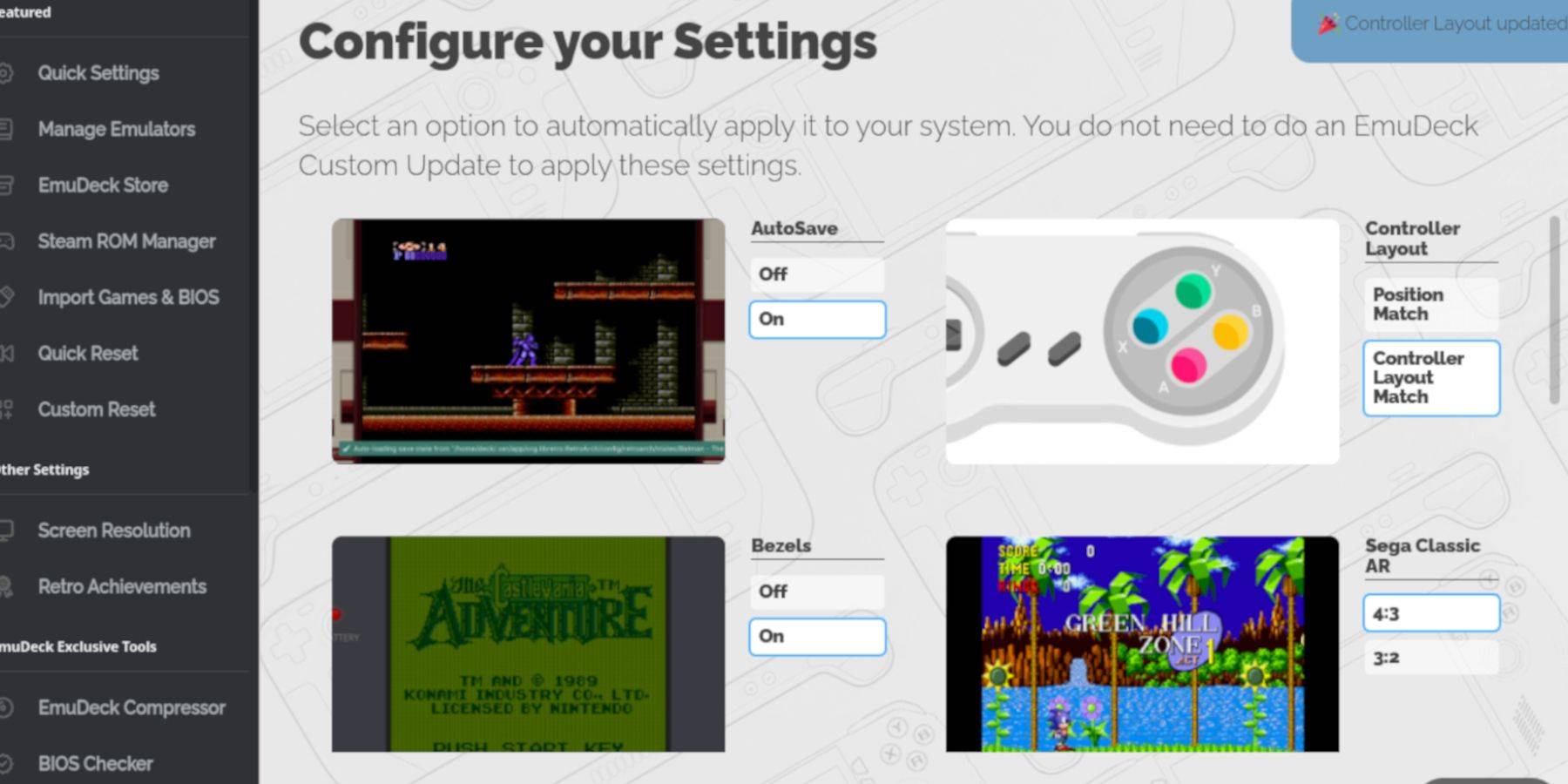
- Open EmuDeck and go to Quick Settings.
- Enable AutoSave, Controller Layout Match, Bezels, Nintendo Classic AR, and LCD Handhelds.
Add Game Boy Games:
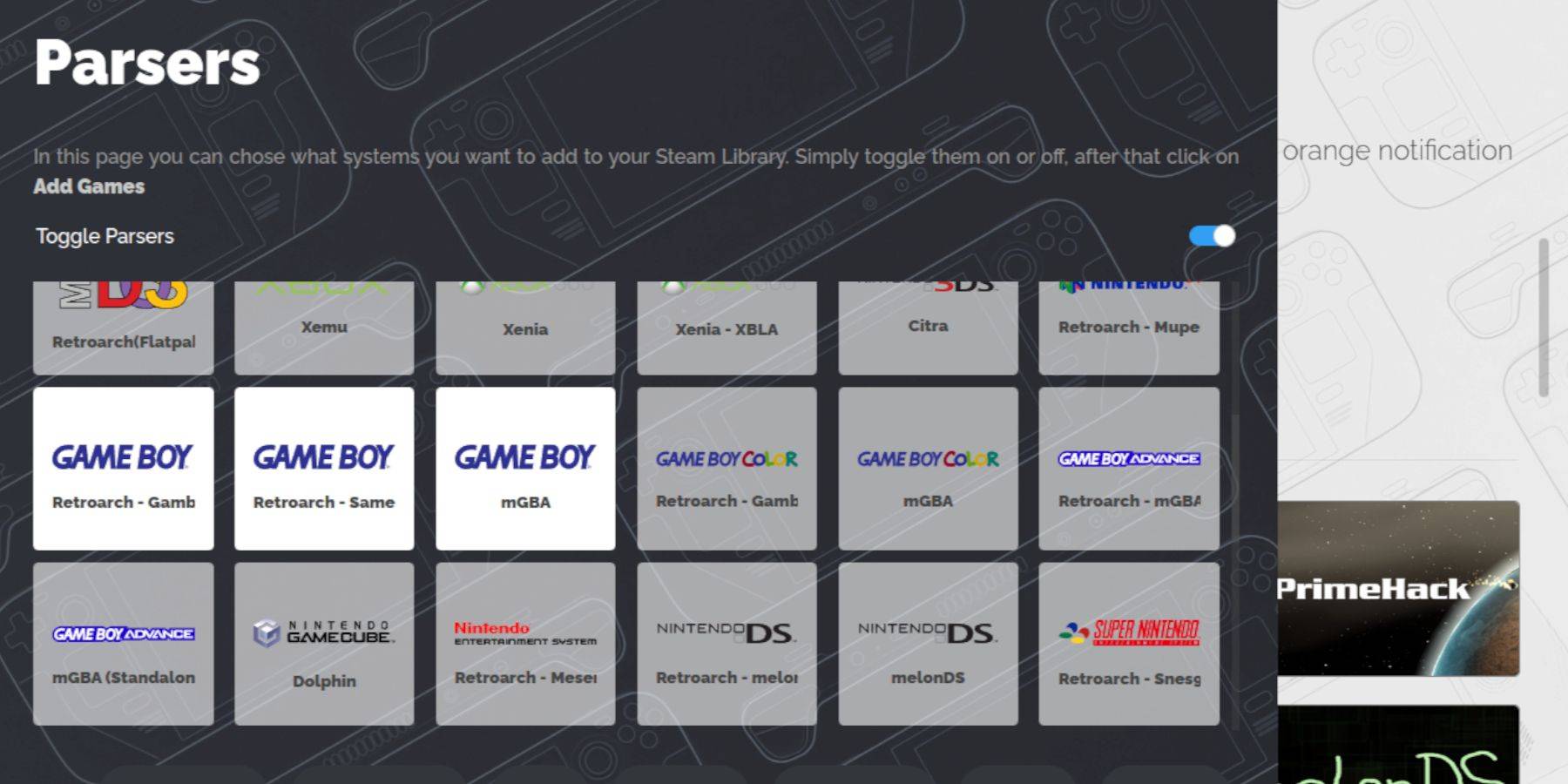
- Use Dolphin File Manager to access your SD card (
Primary>Emulation>ROMS>gb). - Transfer your
.gbROMs to thegbfolder. Ensure correct filenames.
Steam ROM Manager:
- Open EmuDeck and select Steam ROM Manager.
- Close the Steam client (if prompted).
- Disable "Toggle Parsers."
- Add your Game Boy games.
- Save to Steam.
Play Your Games:
- Press the Steam button.
- Go to Library > Collections.
- Select your Game Boy collection and launch a game.
Customize Game Colors (RetroArch):
(Not all games support this)
- Launch a game.
- Open the RetroArch menu (Select + Y).
- Navigate to Core Options > GB Colorization.
- Choose "Auto" or "Off."
Use Emulation Station:
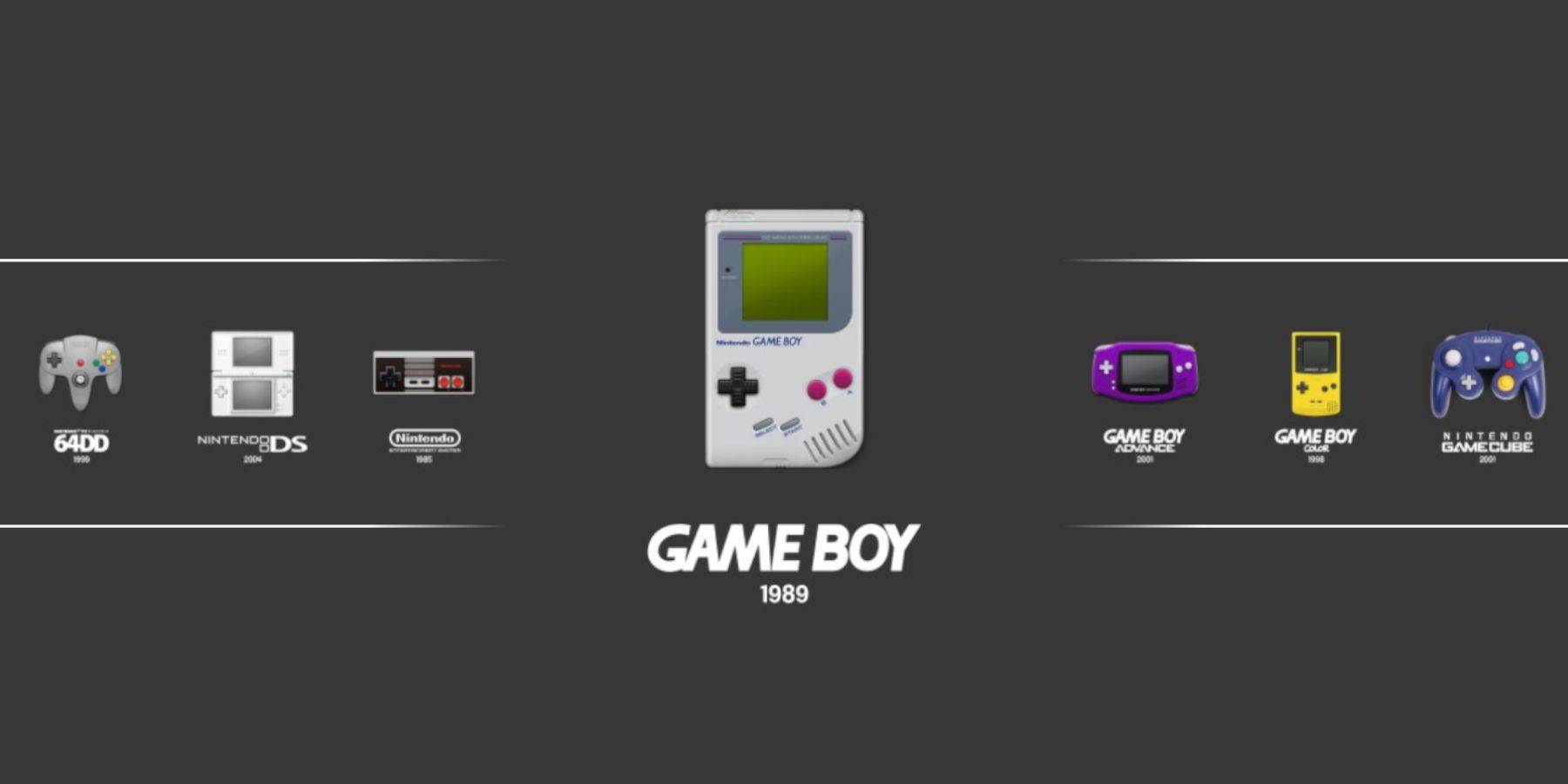
- Press the Steam button.
- Go to Library > Collections > Emulators > Emulation Station.
- Select Game Boy and launch your game. The RetroArch menu (Select + Y) also works here.
Install Decky Loader:
- Switch to Desktop Mode.
- Download Decky Loader from its GitHub page.
- Run the installer and choose the recommended installation.
- Restart your Steam Deck.
Install Power Tools Plugin:
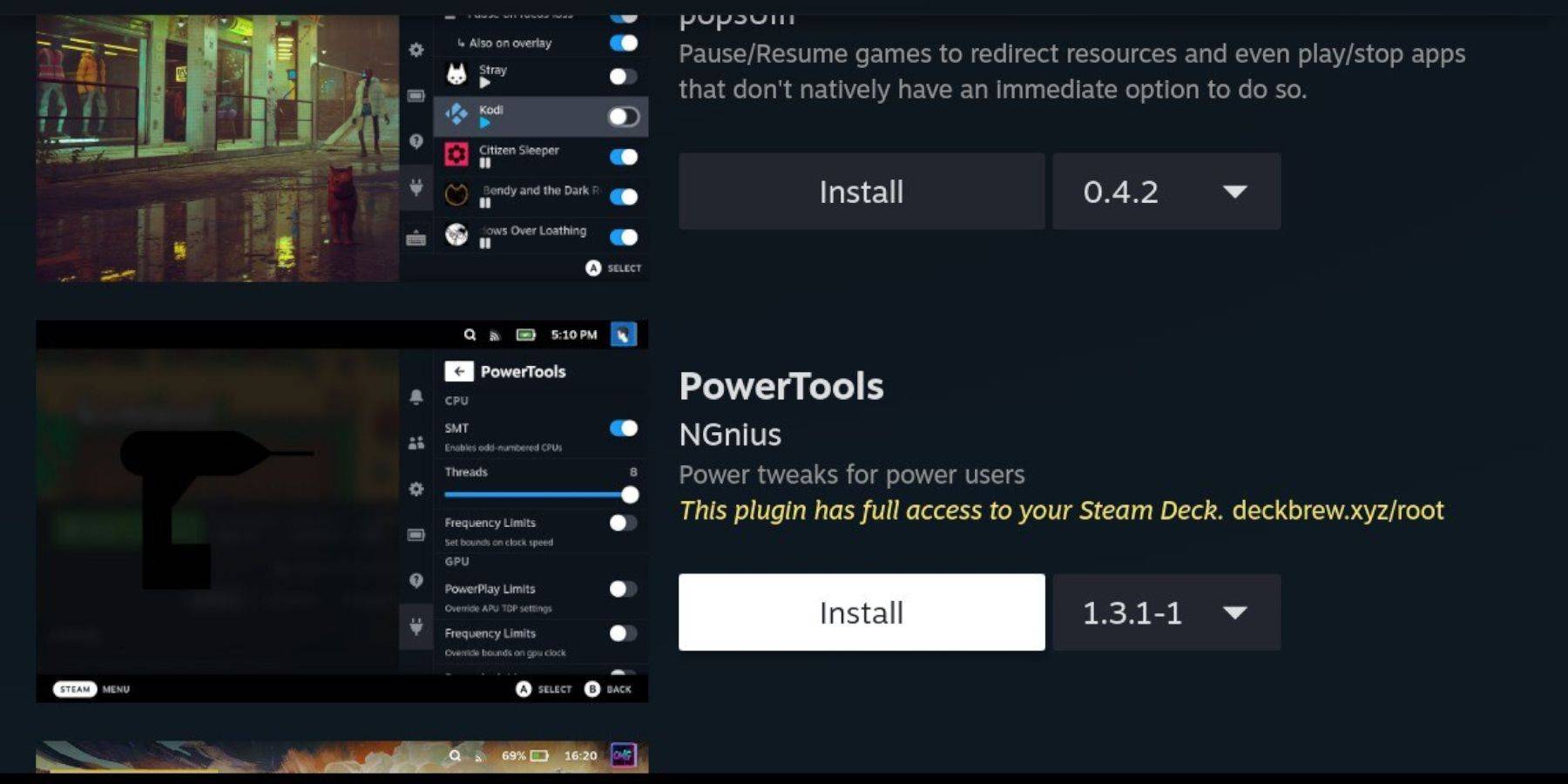
- Access Decky Loader's Quick Access Menu (QAM).
- Open the Decky Store and install the Power Tools plugin.
Power Tools Settings:
- Launch a Game Boy game.
- Open Power Tools via QAM.
- Turn off SMTs.
- Set Threads to 4.
- Open the Performance menu (QAM), enable Advanced View.
- Enable Manual GPU Clock Control and set GPU Clock Frequency to 1200.
- Use Per Game Profile to save settings.
Restoring Decky Loader After a Steam Deck Update:
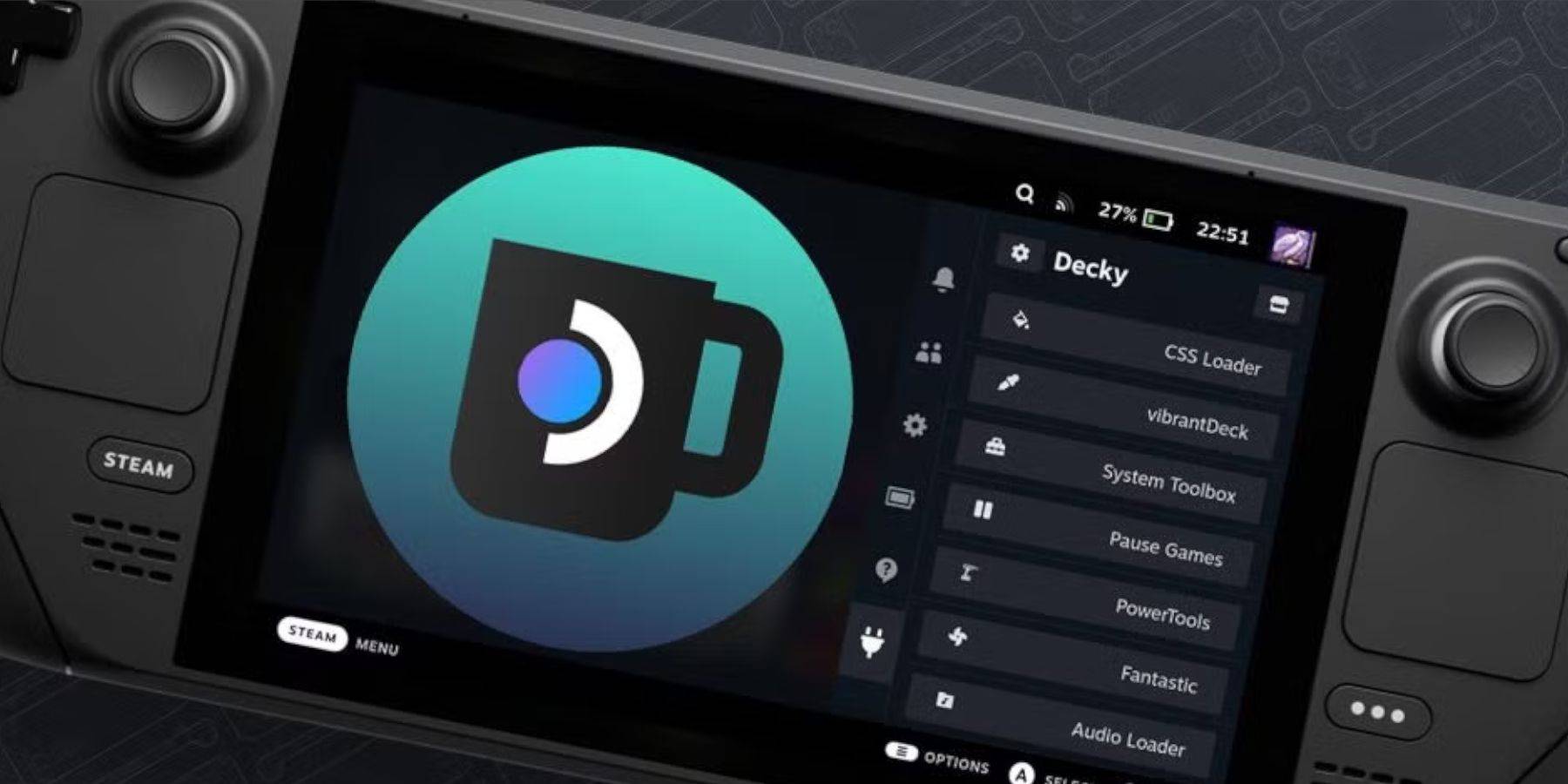
- Switch to Desktop Mode.
- Re-download Decky Loader from GitHub.
- Run the installer (Execute only).
- Enter your pseudo password (create one if needed).
- Restart your Steam Deck.
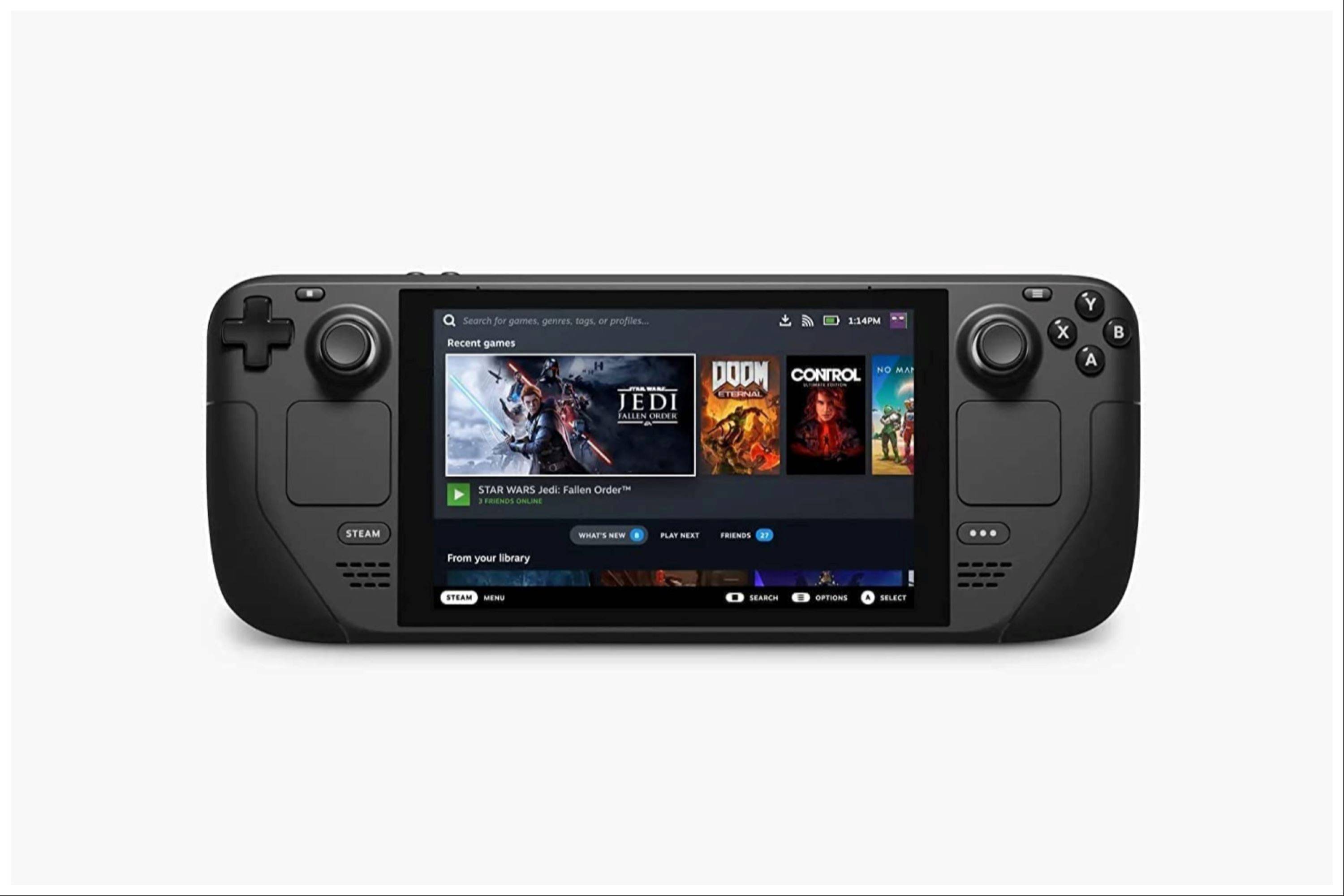 Enjoy your enhanced Game Boy experience on your Steam Deck! Remember to always obtain ROMs legally.
Latest Articles
My Little Pomodoro Boosts Focus, Hits Android
Most productivity timers demand your focus. Devfloor's new release, My Little Pomodoro: Focus, actually gives something in return. This charming Android app transforms concentration into a rewarding experience rather than a tedious obligation.Underst
Tekken 8 Director Slams Fan Over Anna Williams' New Look: 'Unconstructive and Pointless'
Play
Tekken 8 veteran Anna Williams is making her return to the roster, and while her redesigned look has been well received by the majority of fans, it has also sparked some debate—particularly over comparisons of her new outfit to Santa Claus.
When a fan asked Tekken game director and chief prod
Ready or Not Shares Update in Censorship and Review-Bomb Fight
VOID Interactive has responded to player criticism following updates to the PC version of its controversial shooter Ready or Not, implemented to secure its console release. The studio clarified there have been "misconceptions and misinformation" rega
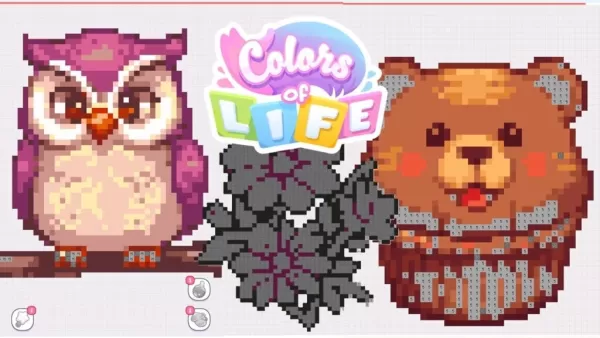
Colors of Life: 365 New Mobile Puzzles Annually
Colors of Life is an Android game that offers a fresh take on coloring. As the name suggests, you fill in colors, combining classic color-by-number mechanics with pixel art style. Developed by Rursus, it’s free to play with optional extras available
Classic Fire Emblem Game Hits Nintendo Switch Online
Surprise! Fire Emblem: The Sacred Stones is now available in the Nintendo Switch Online game library.Originally hitting the Game Boy Advance in 2004, this title only reached Western audiences in 2005. It’s a standalone story following Renais' twin ro

Madoka Magica: Magia Exedra Scene 0 Part 1 Release Imminent
Puella Magi Madoka Magica Magia Exedra is set to launch a new update soon. Aniplex is introducing a limited-time event quest titled "Puella Magi Madoka Magica: Scene 0 Part I." This marks the beginning of a three-part story arc that will later integr
Latest Games



Project Pentjet
Music丨6.51MB

3D World - Puzzle game
Educational丨63.75MB
تخته نرد حرفه ای
Card丨3.20M

Militar Macizo
Action丨32.8 MB

Obama Run!
Action丨78.6 MB

Rake Monster
Action丨200.2 MB








Top News
MORE +

01
01-07
BREAKING: Flight Simulator 2024 Login Woes Ground Players
Flight Simulator 2024 Launch Plagued by Technical Difficulties
The highly anticipated launch of Flight Simulator 2024 has been significantly hampered by widespread technical problems, leaving many players grounded before they could even take to the virtual skies. This article details the reported d
02
01-06
CDPR acknowledged weak gameplay in The Witcher 3
The Witcher 3, while critically acclaimed, wasn't without its flaws. Many fans felt the combat system fell short.
In a recent interview, Witcher 4's game director, Sebastian Kalemba, acknowledged weaknesses in the previous game's gameplay, specifically highlighting the need for significant improvem
03
11-17
Hogwarts Legacy 2 is "One of the Biggest Priorities" for WB Games
Following the successful launch of Quidditch Champions this week, Warner Bros. Discovery has confirmed its plans for a sequel to last year's Harry Potter-based action RPG hit Hogwarts Legacy—2023's best-selling game.Hogwarts Legacy Sequel Plans Confirmed by Warner Bros. DiscoveryExpected in
04
11-16
Airplane Chefs Brings The Ultimate Snack, Pringles, On Board!
Buckle up for some snacks as Nordcurrent has just dropped an exciting event for their cooking game. It’s the most unexpected collab of Airplane Chefs and Pringles. If you’ve been enjoying your virtual life as a flight attendant, things are about to get a lot tastier.The game developer behind p
05
11-16
Play Together to collaborate with Sanrio and introduce new My Melody and Kuromi content
Play Together is bringing back its Sanrio collab with the appearance of My Melody and KuromiYou can collect coins by completing their themed missions that can then be used to draw exclusive itemsAs a bonus there's also new summer-themed content and events, including a major bug huntPlay Together, th
Topics
More +