Best Settings to Reduce Motion Sickness in Avowed
Author : Julian
Mar 01,2025
Conquer Motion Sickness in Avowed: Optimal Settings for a Smooth Gameplay Experience
Many players experience motion sickness while playing first-person games. If Avowed is causing you discomfort, these settings can help alleviate those symptoms.
Recommended Settings to Minimize Motion Sickness in Avowed
The primary culprits of motion sickness in first-person games are often head movement, field of view, and motion blur. Avowed is no exception.
Eliminating Head Movement and Camera Shake
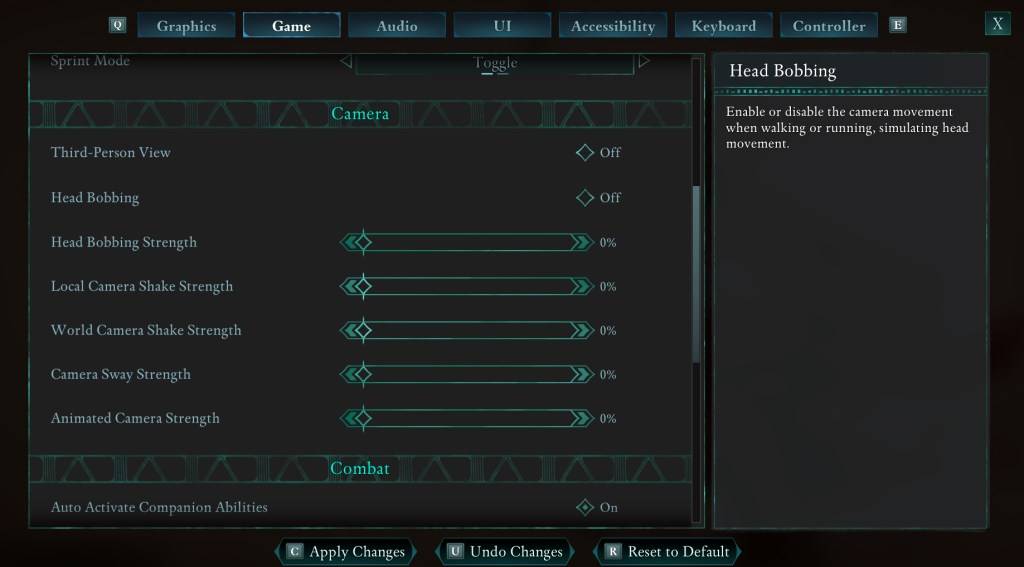
To start, adjust the camera settings to minimize motion. Navigate to Settings > Game > Camera and modify the following:
- Third-Person View: Your preference (on or off).
- Head Bobbing: Off
- Head Bobbing Strength: 0%
- Local Camera Shake Strength: 0%
- World Camera Shake Strength: 0%
- Camera Sway Strength: 0%
- Animated Camera Strength: 0%
These adjustments should significantly reduce motion sickness. Experiment with these settings to find the optimal balance between immersion and comfort.
Addressing Field of View and Motion Blur
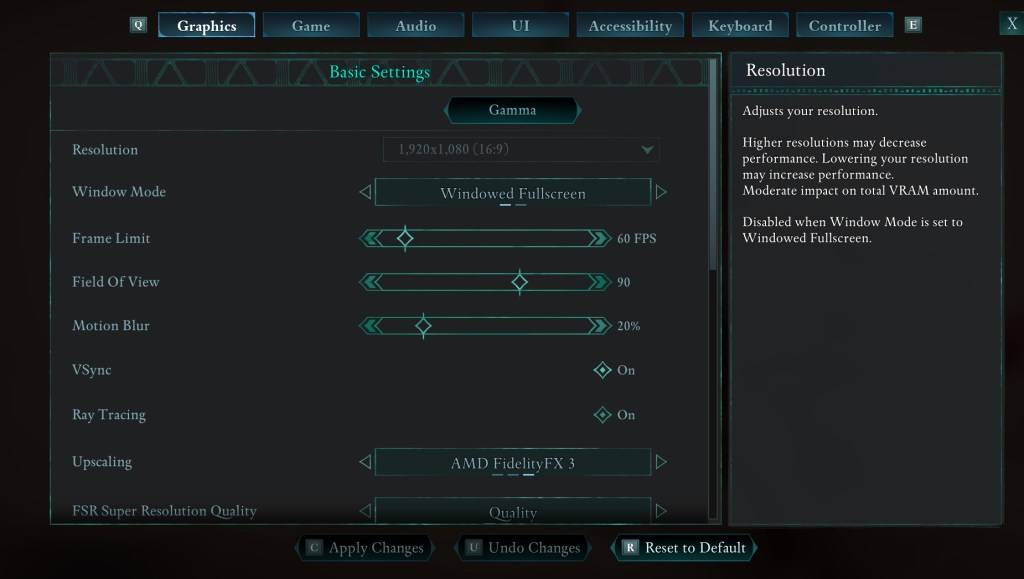
If eliminating head movement isn't enough, further refine your experience by adjusting graphics settings. Go to Settings > Graphics and locate the following sliders:
- Field of View: Start with a lower value and gradually increase it until you find a comfortable level. This might require some experimentation.
- Motion Blur: Reducing or completely disabling motion blur often helps alleviate motion sickness. Try setting it to zero initially and adjust as needed.
Persistent Motion Sickness?
If motion sickness persists, continue fine-tuning the settings mentioned above. Consider switching between first-person and third-person perspectives as needed. However, if the discomfort is overwhelming, prioritize your well-being. Take breaks, drink water, and resume gameplay later.
Avowed is currently available.
Latest Articles
Tekken 8 Director Slams Fan Over Anna Williams' New Look: 'Unconstructive and Pointless'
Play
Tekken 8 veteran Anna Williams is making her return to the roster, and while her redesigned look has been well received by the majority of fans, it has also sparked some debate—particularly over comparisons of her new outfit to Santa Claus.
When a fan asked Tekken game director and chief prod
Ready or Not Shares Update in Censorship and Review-Bomb Fight
VOID Interactive has responded to player criticism following updates to the PC version of its controversial shooter Ready or Not, implemented to secure its console release. The studio clarified there have been "misconceptions and misinformation" rega

Colors of Life: 365 New Mobile Puzzles Annually
Colors of Life is an Android game that offers a fresh take on coloring. As the name suggests, you fill in colors, combining classic color-by-number mechanics with pixel art style. Developed by Rursus, it’s free to play with optional extras available
Classic Fire Emblem Game Hits Nintendo Switch Online
Surprise! Fire Emblem: The Sacred Stones is now available in the Nintendo Switch Online game library.Originally hitting the Game Boy Advance in 2004, this title only reached Western audiences in 2005. It’s a standalone story following Renais' twin ro

Madoka Magica: Magia Exedra Scene 0 Part 1 Release Imminent
Puella Magi Madoka Magica Magia Exedra is set to launch a new update soon. Aniplex is introducing a limited-time event quest titled "Puella Magi Madoka Magica: Scene 0 Part I." This marks the beginning of a three-part story arc that will later integr
Hunty Zombie Codes Active
Last updated on October 25th, 2025 - Fresh Hunty Zombie codes have been added!Hunty Zombie is a Roblox adventure where you face off against waves of the undead. You can brave it alone or team up with up to five other players. Every zombie you defeat
Latest Games
Militar Macizo
Action丨32.8 MB

Obama Run!
Action丨78.6 MB

Rake Monster
Action丨200.2 MB

Мафия России: Сибирская Братва
Adventure丨201.1 MB
Touchgrind X
Sports丨960.3 MB


TopTop KSA(توب توب KSA)
Casual丨265.5 MB

Kick Boxing
Sports丨98.8 MB








Top News
MORE +

01
01-07
BREAKING: Flight Simulator 2024 Login Woes Ground Players
Flight Simulator 2024 Launch Plagued by Technical Difficulties
The highly anticipated launch of Flight Simulator 2024 has been significantly hampered by widespread technical problems, leaving many players grounded before they could even take to the virtual skies. This article details the reported d
02
01-06
CDPR acknowledged weak gameplay in The Witcher 3
The Witcher 3, while critically acclaimed, wasn't without its flaws. Many fans felt the combat system fell short.
In a recent interview, Witcher 4's game director, Sebastian Kalemba, acknowledged weaknesses in the previous game's gameplay, specifically highlighting the need for significant improvem
03
11-17
Hogwarts Legacy 2 is "One of the Biggest Priorities" for WB Games
Following the successful launch of Quidditch Champions this week, Warner Bros. Discovery has confirmed its plans for a sequel to last year's Harry Potter-based action RPG hit Hogwarts Legacy—2023's best-selling game.Hogwarts Legacy Sequel Plans Confirmed by Warner Bros. DiscoveryExpected in
04
11-16
Airplane Chefs Brings The Ultimate Snack, Pringles, On Board!
Buckle up for some snacks as Nordcurrent has just dropped an exciting event for their cooking game. It’s the most unexpected collab of Airplane Chefs and Pringles. If you’ve been enjoying your virtual life as a flight attendant, things are about to get a lot tastier.The game developer behind p
05
11-16
Play Together to collaborate with Sanrio and introduce new My Melody and Kuromi content
Play Together is bringing back its Sanrio collab with the appearance of My Melody and KuromiYou can collect coins by completing their themed missions that can then be used to draw exclusive itemsAs a bonus there's also new summer-themed content and events, including a major bug huntPlay Together, th
Topics
More +